3D Model Generation
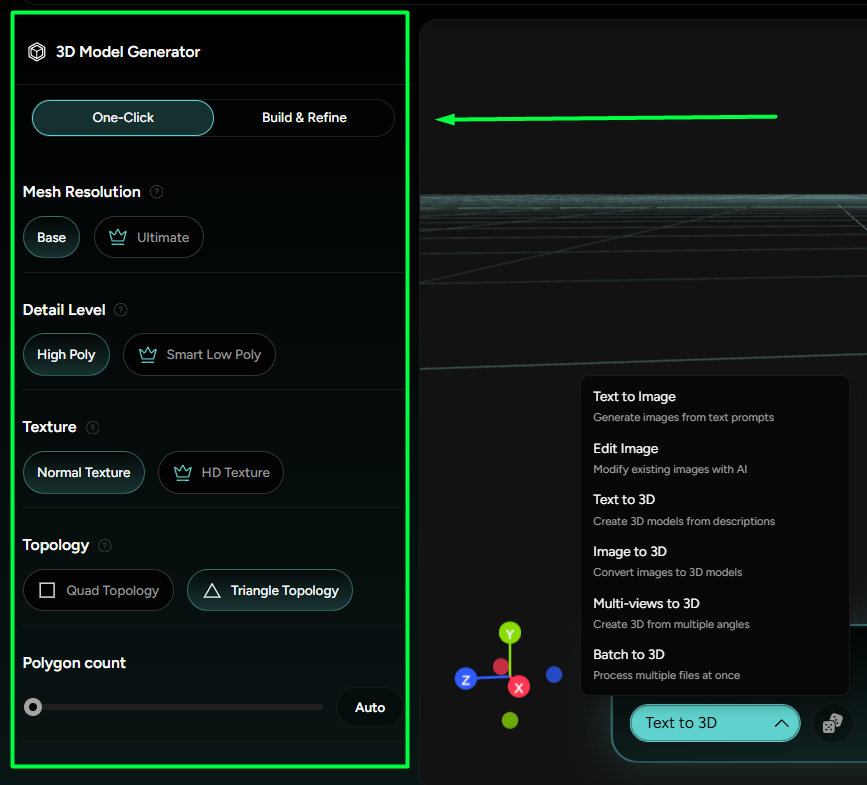
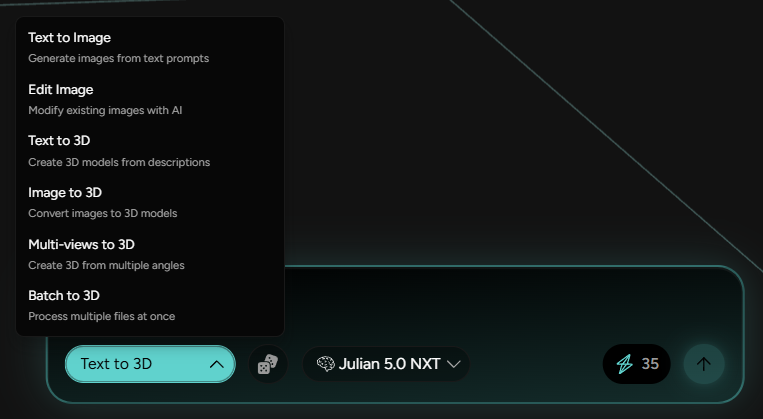
The founding step for an entire workflow requires a text input in the Bottom Prompt box that would generate a starting mesh for the entire production process. There, the user can choose between :
- Text to Image
- Text to 3D
- Image to 3D
- Multi-views to 3D
- Batch to 3D
Images can be generated or imported, and this also applies for multi-view and batch options, only in multiples. Batch is used for generating a lot of models at once, while Multi-views allows generating from different standardized viewing angles of a single product.
In the prompt box the user can also choose the preferred version of the Model, and have a prompt be randomly generated as an inspo.
For a finer control of the prompt output, the User should look to the 3D Model Generator Editor Panel, where they can choose between One-Click and Build and Refine tabs, both encapsulating several different mesh properties (Figure 2).
One-Click options provide controls over Mesh Reworkspace, Detail Level, Texture, Topology and Polygon count, while Build and Refine offers all of these, with the exception of Texture. These presets mostly impact the time it takes for the AI to generate the model, so setup should be planned according to the active deadline.