Collaborative Review System
Ever since Patch 2.11.2, the Threedium Platform offers a long awaited Commenting and Review system, in a move to integrate, facilitate and standardize all aspects of 3D Workflow, including the feedback process.
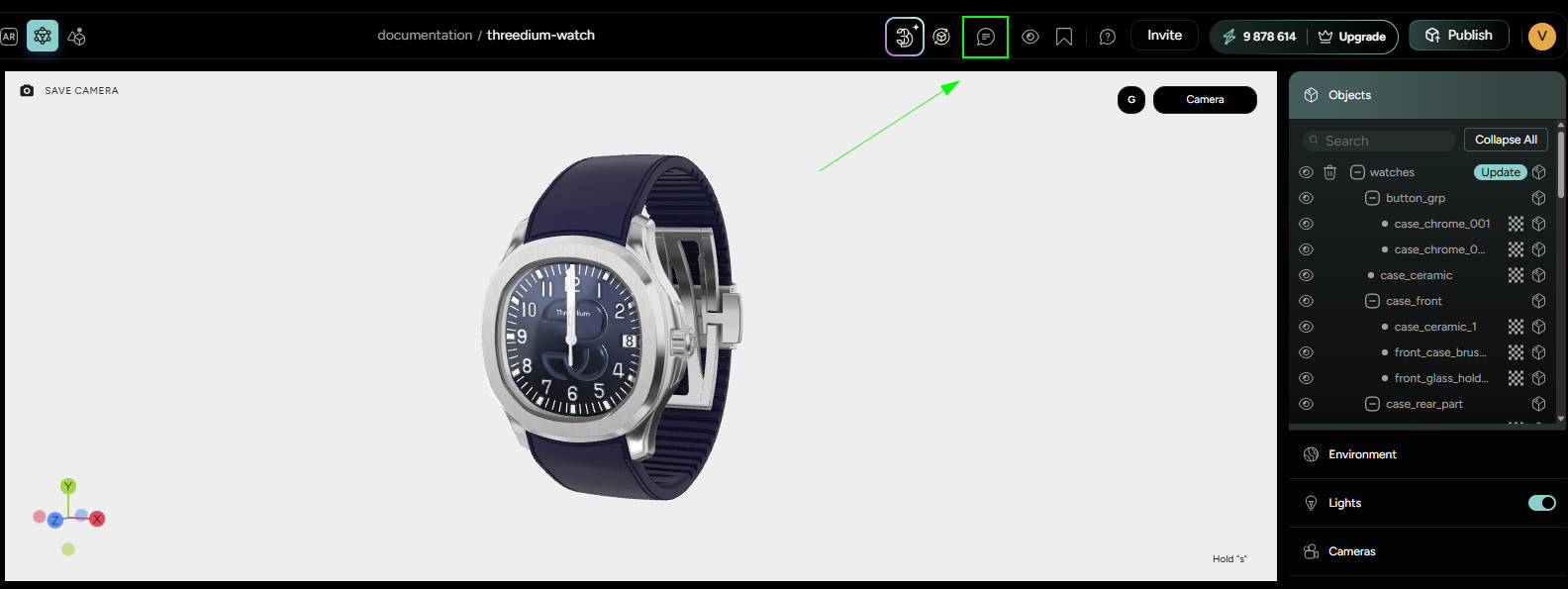
Currently, the commenting system is available by clicking on the “Comments” icon in the Top-right side Editor Ribbon (Figure 1) for Modeler and Admin roles and from the “Review” option in the Project tab for Modeler, Admin and Reviewer roles.
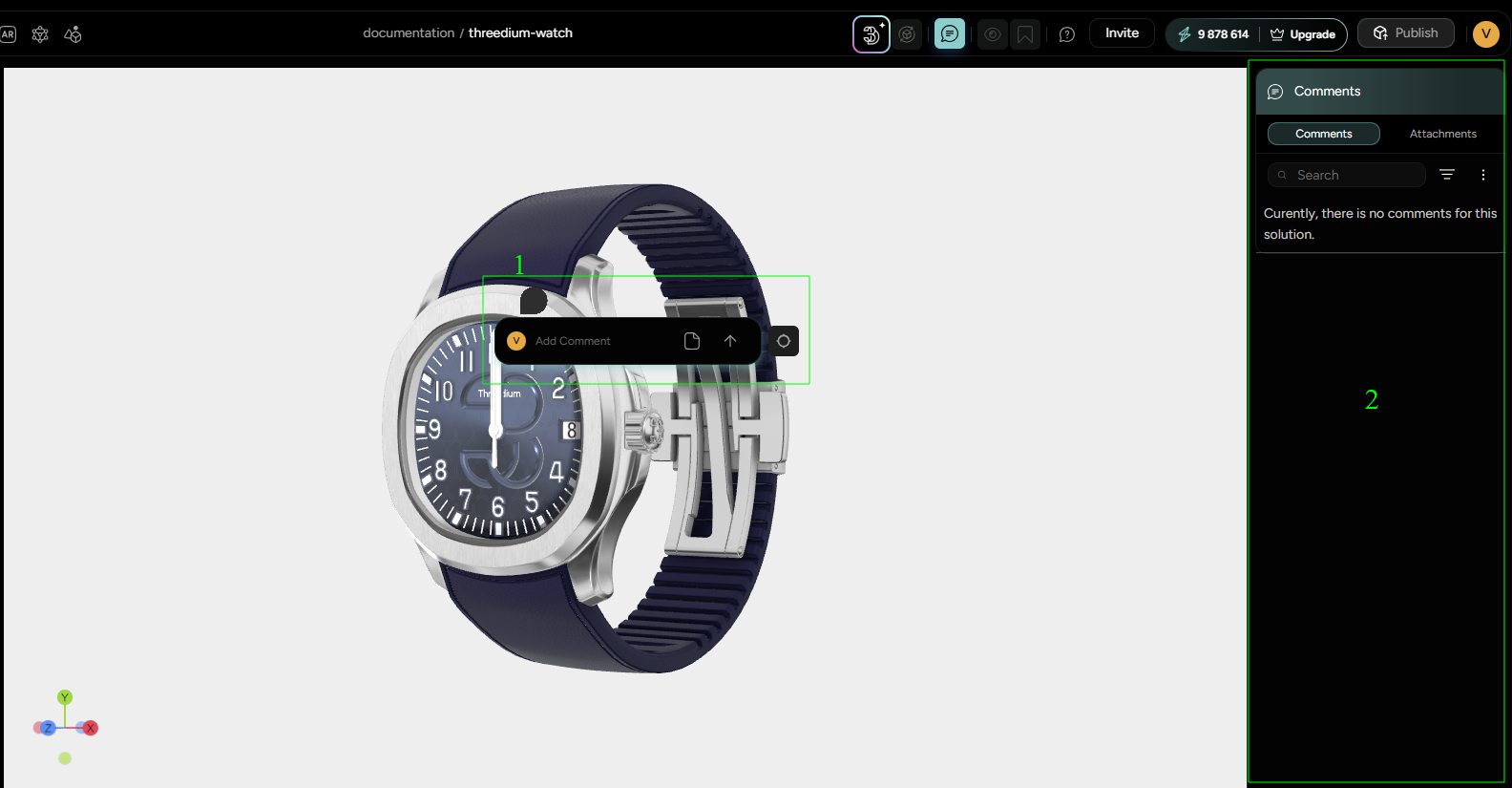
Once accessed, the Commenting mode will be enabled and clicking anywhere in the Scene will drop a Commenting pin with a Text box that allows commenting (Marked with “1” in the Figure 2). Right side Object menu will be replaced with the Comments panel that keeps a record of the entire Commenting Thread (Marked with “2” in the Figure 2).
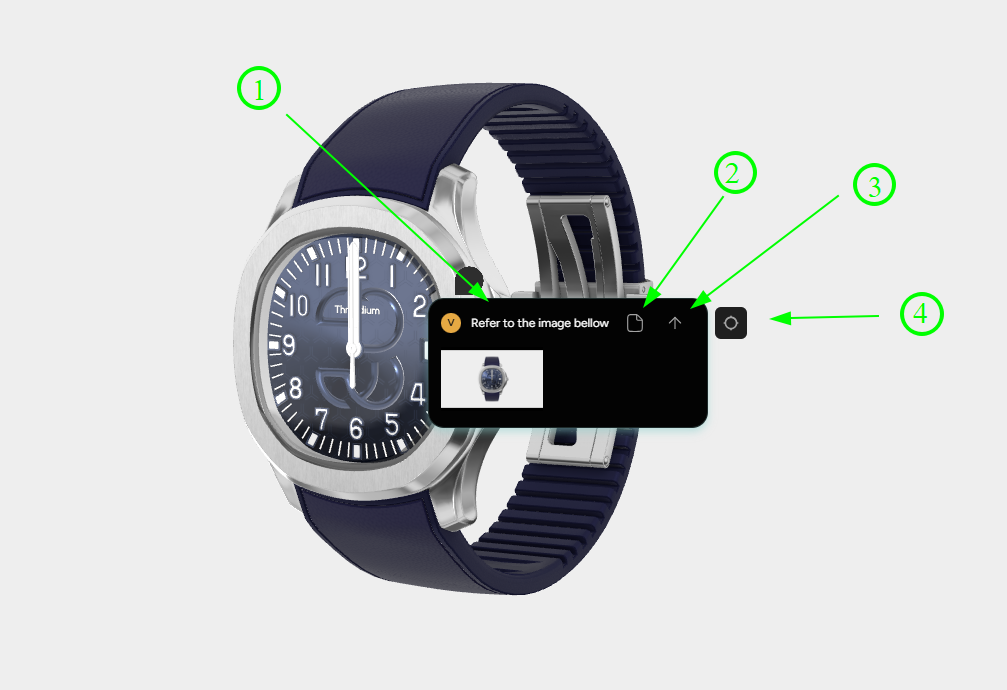
Comment pins will attach automatically to the detected Mesh surface, or to the Screen space-relevant spot, opening up a commenting Text box with several options (Figure 3).
Commenting box allows:
- Comment input (Marked with “1” in the Figure 3);
- Attaching a relevant 2D file (all 2D file types that are already supported; Marked with “2” in the Figure 3);
- Submitting a Comment (Keyboard Shortcut: “Enter”; Marked with “3” in the Figure 3);
- Adding Markers for more precise annotating (Up to 5 max; Marked with “4” in the Figure 3 and demonstrated in the Figure 4);
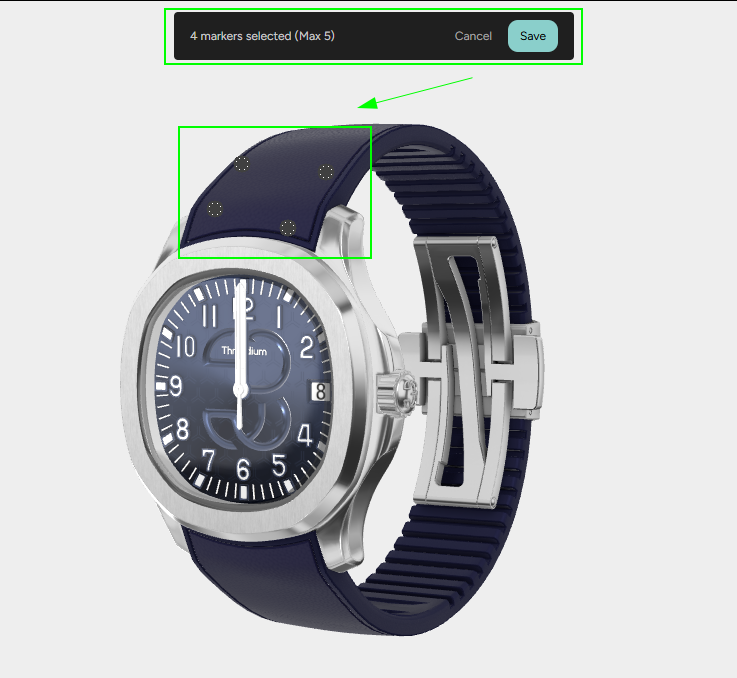
Clicking on Save will confirm the placed Markers. Clicking on Cancel will cancel the placement mode and all placed markers, if there are any.
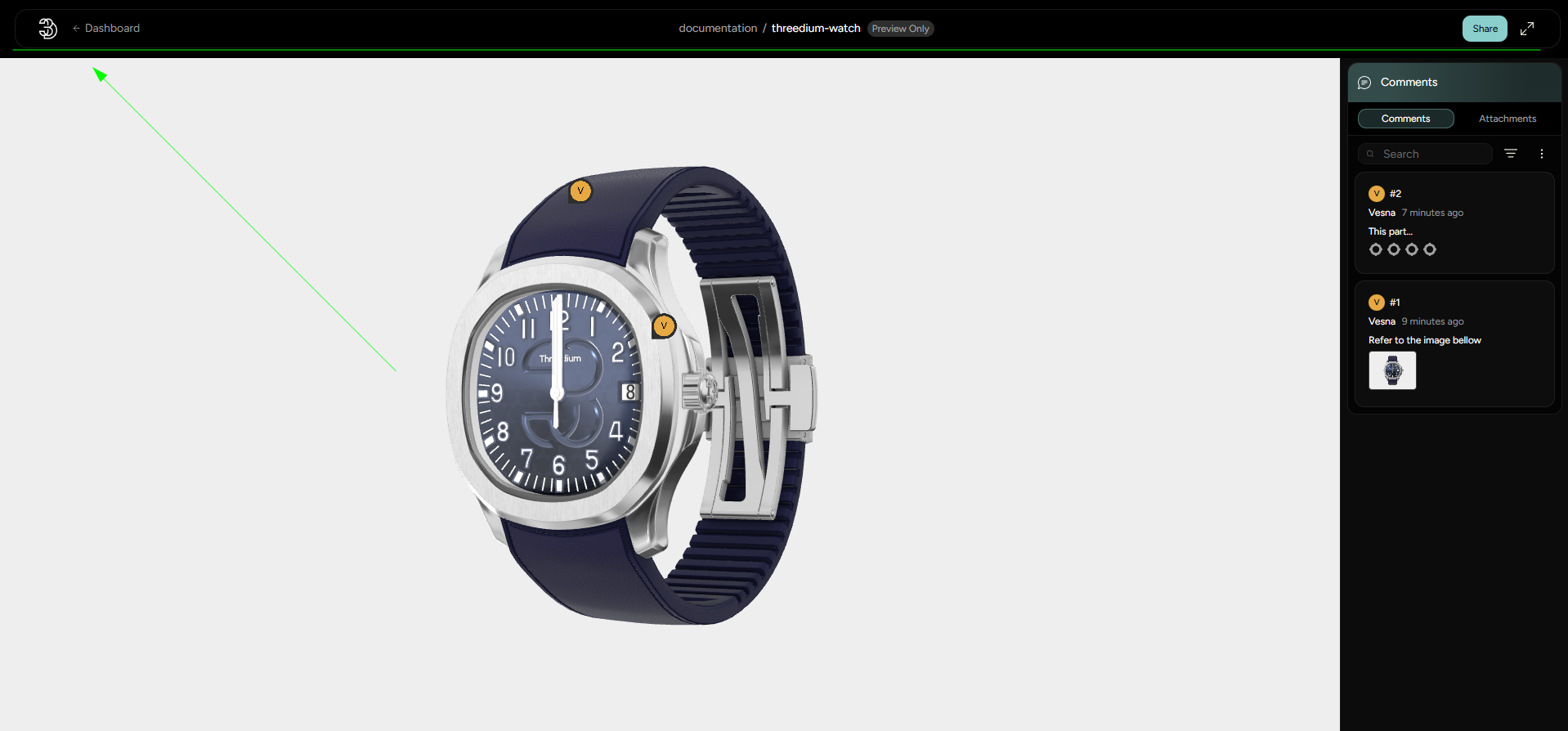
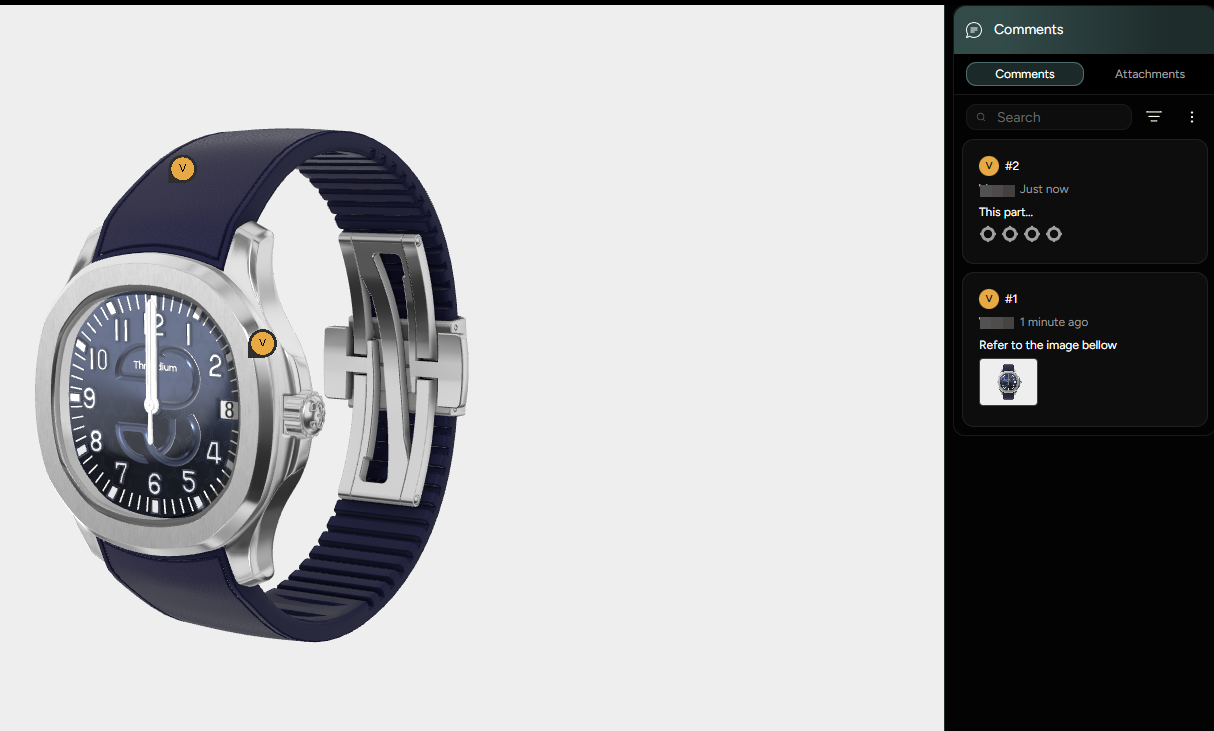
Once the comment is confirmed, it becomes viewable in the Right-side Comments panel with any Figure Thumbnails and Marker indicators (corresponding to the marker count for the said comment) (Figure 5). The Comment Author’s name and Comment’s sequence number are also displayed.
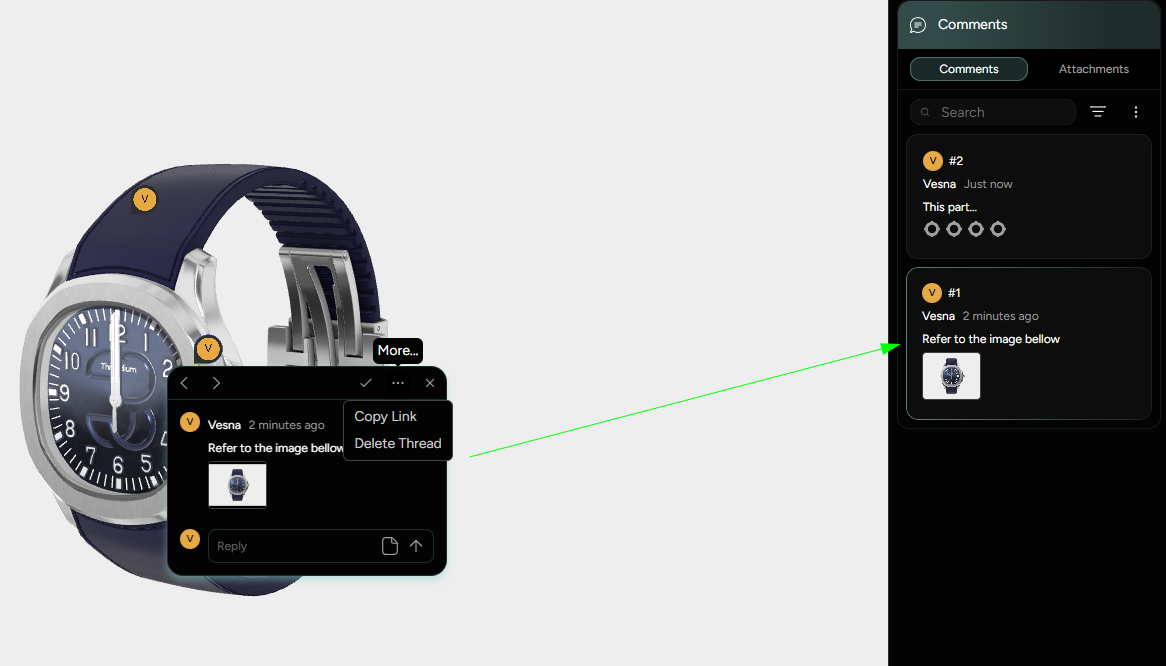
The comments can further be replied upon, by opening them from the Right-side comment panel click, or by clicking on the comment pin directly. The opened comment thread can then be directly linkable or resolved (Figure 6).
The Right-side Comment panel offers several handy options for sorting and filtering the Comment section. The options will be numbered in the order corresponding to the number marks in the Figure 7:
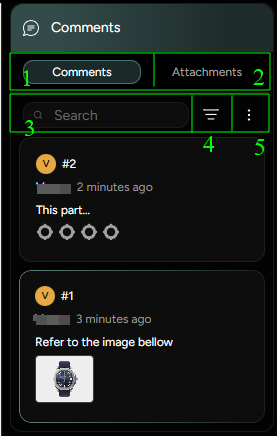
- Comments tab - displays the Commenting Thread (open by default);
- Attachments tab - displays all the Attached 2D files that are present in the feedback process;
- Search bar - allows for searching the desired comment, by inputting relevant text, or the Author’s name;
- Sorting filters - allow quick display of relevant comment based on some common categories (Figure 8);
- Disabling the comment visibility in the Viewport.
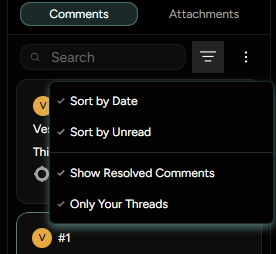
Sorting filters allow filtering comments based on their Date, whether they are read, resolved or in one of the User’s Commenting Threads.
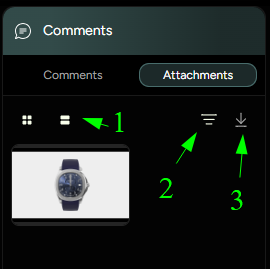
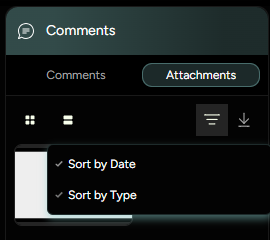
The Attachment tab offers options of filtering the attachment thumbnail size (Marked with “1” in the Figure 9), sorting the attachments by Date and Type (Marked with “2” in the Figure 9 and displayed in the Figure 10), downloading selected Attachments (Marked with “3” in the Figure 9).
The Review system will look differently for different U3D roles.
Different roles have different levels of agency within the project. To a reviewer, a Commenting mode will look similar to what was showcased so far (Modeler, Admin level of permission), with standard Workspace editing options excluded. The Reviewer has an added option of toggling on and off the commenting mode with Top-left-side comment button (Figure 12).