Transitions
Transitions are a base component of the Action chain. They mainly focus on elementary changes that can be performed with any 3D object (location, rotation, scale) and can affect that object’s specific properties and parameters (intensity for Lights, FoV for Cameras etc.). They can be pre-baked in the native software and called to action on premises, but the Threedium Platform facilitates their setup in order to support more layered work approaches.
Transition Options
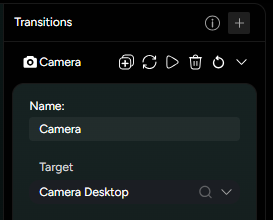
As any other Editor-native feature, all Transitions have the standard Name-bar option of being cloned, along with Play, Update, Revert and Delete options, most of which will be explained in detail among the General Transition options. All Transitions can change their Name and Transition-specific Target in the “Name” and “Target” inputs (Figure 1).
Beside the standard and object-specific Transition parameters, all Transitions share a similar set of options that can in general be applied to any of them. These include (Ordered as marked in Figure 2.):
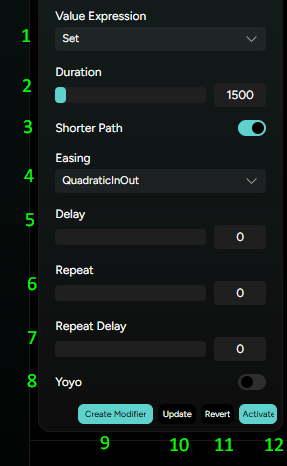
Value Expression- determines whether the new value input for the Transition will be Set regardless of the default value, Added to a default value, or Multiplied with the default value;Duration- sets a period in which the Transition will play out, measured in millisecondsShorter Path- toggles an automatic calculation of the shortest trajectory that’s needed for the Transition to take place, after the new value inputEasing- assigns a preset mathematical function to the Pathing of every vertex affected by the Transition, thus altering the manner in which it plays outDelay- sets a value of time units (milliseconds) after which the Transition will play out, once initiatedRepeat- determines how many consecutive times will the Transition play outRepeat Delay- sets a value of time units (milliseconds) in between every Transition repeatYoyo- toggles a perpetual back-and-forth effect for the TransitionCreate Modifier- quickly turns a Transition into the ModifierUpdate- allows recording the Transition from the active Scene state, instead of the manual value inputRevert- it sets the Transition back to its default stateActivate- sets the chosen Transition in motion
Transition Types
Based on Transition type, Transitions offer following options for their respective targets:
- Camera Transition - targets Cameras and enables Position and Target changes (this is done in linear movement, changing the camera's position along the X, Y, and Z axes in a straight line from a start point to an end point)
- Camera Control Transition - similar to Camera transitions, but here camera is moved in a different method - polar coordinate movement. Moving the camera around a central point (target) - along a sphere's surface. Instead of specifying the camera's position in Cartesian coordinates (X, Y, Z), you define the position with three polar coordinates: azimuthal angle, polar angle, and radial distance
- Mesh Node Transition - targets a Mesh node and enables Position, Rotation and Scale changes
- Annotation Transition - targets Annotations and enables Position, Rotation and Scale changes
- Light Transition - targets Lights and enables Position, Target, Color and Intensity changes
- Material Transition - targets a certain Material and enables Opacity and Color changes
- 3D Text Transition - targets a 3D Text and enables Position, Rotation and Scale changes
- Global Environment map Transition - targets a Global Environment map and enables Rotation changes