Animations
This document provides an overview of animation-related functionalities available on our Threedium Platform, including Animation Previews and Animations Sets. It explains how users can play, stop and manage animations into organized sets. Users can preview animations directly in the interface, organize multiple animations per model, and customize playback through looping, speed adjustments, reverse mode and smooth transitions.
Animation Previews
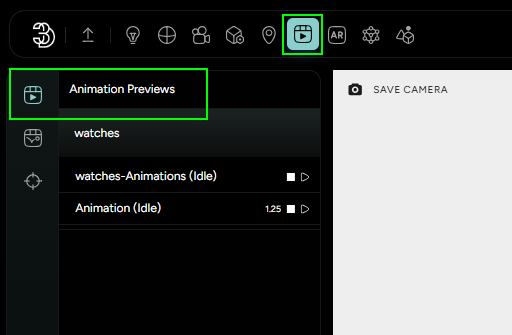
The platform supports animation previews, allowing users to play and stop animations that are imported from external software. A simple Play and Stop buttons let you quickly check animations directly on the platform.
Animation Sets
Animation Sets provide a way to organize multiple animations. Each set can be named for easy identification and linked to specific animation.
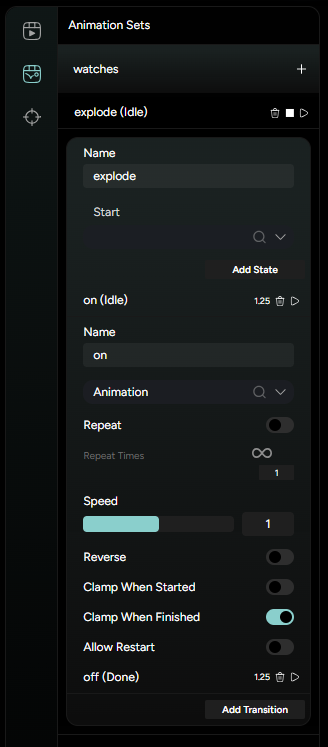
Available options within Animation Sets (see Figure 2.):
- Select Animation - Choose which animation the set should control.
- Repeat toggle- Allows the animation to loop.
- You can enable infinite looping (∞ icon) or specify the exact number of loops in the input box.
- Speed control - Adjust the playback speed from 0 to 2 (or type custom value for higher speeds).
- Reverse toggle - Play the animation in reverse. *** Clamp When Started/Finished** - Define whether the mesh should remain in its starting or ending pose once the animation finishes.
- Allow Restart Toggle - Enables restarting the animation even while it’s playing.
Transitions
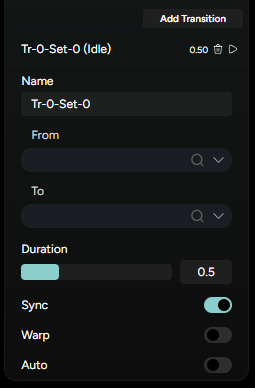
You can add transitions between two animation sets to create smooth blending (see Figure 3.)
- Name the transition - Each transition can be named for clarity.
- From/To- Define which animation sets the transition connects.
- Duration - Control how long the transition lasts (0-2 seconds by default, with the option to enter a higher value).
- Sync, Warp, Auto toggles - Additional settings for timing, synchronization, and automatic playback control.
Morph Targets
Morph Targets are used to create smooth transitions between different mesh states, such as scaling a ring to match different carat sizes. Each morph target takes a value between 0 and 1, where 0 represents the base mesh and 1 represents the fully deformed state.
In Blender, for example, this functionality is handled through Shape Keys. When exporting, the shape key names are preserved, meaning that the same naming convention (e.g., “Key1”, “Key2”) will be used on the platform. This ensures consistency and easy identification of each morph target.