Cameras
In 3D software, cameras serve as the virtual eyes through which we view our created environments and objects. They play a crucial role in shaping the perspective, composition, and ultimately the audience's experience of the 3D scene. Understanding how cameras operate in a digital space is essential for artists, designers, and animators to effectively visualize and present their work.
In the following sections, we'll explore the array of camera options you have at your disposal on our Threedium Platform.
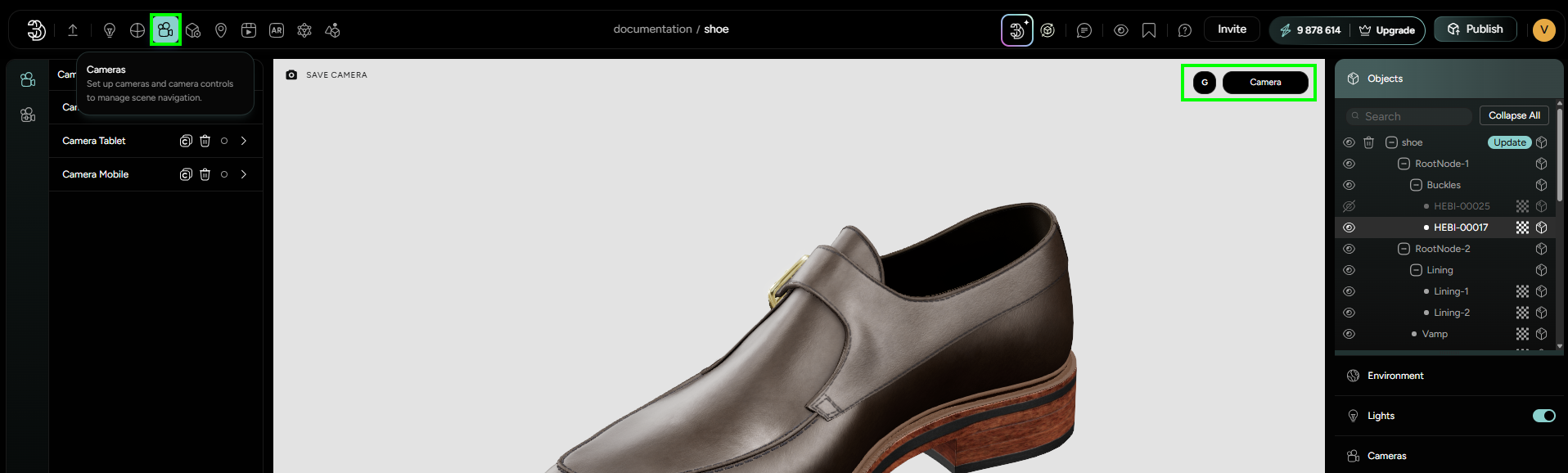
When user creates a new workspace on our platform, they are provided with three preset cameras tailored to desktop, mobile, and tablet displays, named Camera Desktop, Camera Mobile, and Camera Tablet, respectively. This arrangement caters to the variability in screen sizes and viewing contexts across devices.
The presentation of a 3D model can significantly change when viewed on various devices. A perspective that appears compelling on a larger desktop screen may not translate well to the smaller confines of a mobile device. For instance, an expansive model might impress with close-up details on a desktop but could exceed the boundaries of a mobile screen, resulting in a less than ideal user experience. To ensure optimal display, it's advisable to construct at least two distinct camera setups: one that captures the scene from a vantage point suitable for mobile viewers, and another that provides an ideal perspective for desktop and laptop users.
By setting up these device-specific cameras, the ability to automatically select the most appropriate default camera upon detecting the user's device is presented. This preemptive adjustment enhances the viewing experience, ensuring that the model is presented in the best possible light, regardless of the device used to access it.
Creating a New Camera
User can create an unlimited number of cameras.
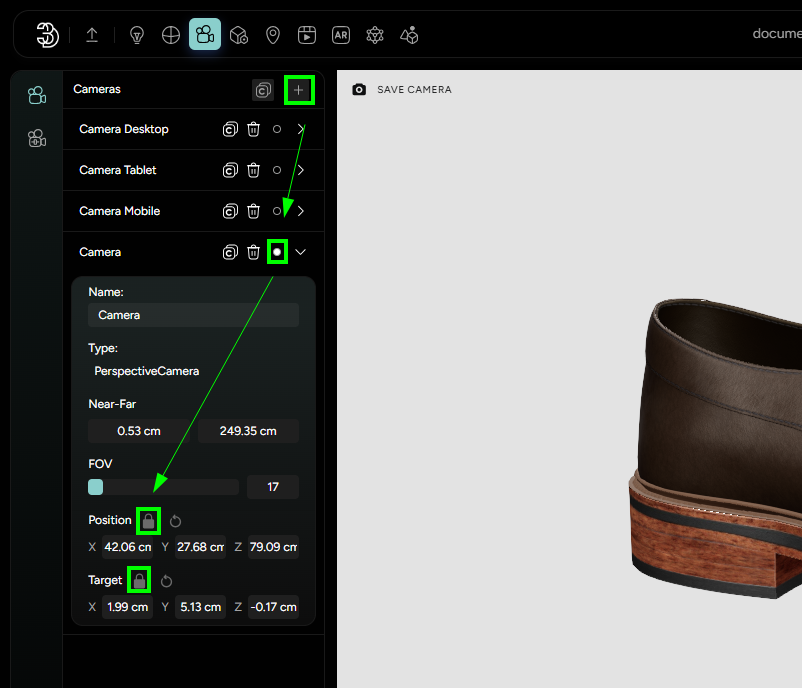
- By clicking on + in the top right corner, a new camera is created in the scene.
- By clicking on the circle in the right corner of the tab, that camera is activated to be the current one that is being used.
- By clicking on the tab of the camera, settings will be opened and now users can customize their camera
Camera Settings
When setting up cameras within your environment, there are several key parameters and features to configure in order to capture your 3D model effectively:
Naming: Assign a unique name to each camera you create. This helps in easily identifying and switching between different views within your scene.Near-Far Clipping Planes: Define the clipping planes by specifying the Near and Far values. These planes determine the distance range in which objects will be rendered by the camera. Objects positioned beyond these planes will not be visible in the camera's view, essentially "clipping" out of the scene as the camera moves.Field of View (FOV): Adjust the camera’s field of view, which is the extent of the observable world seen at any moment through the lens. The default FOV is typically set at 50 degrees. An FOV of 180 degrees is known as Fisheye, providing an ultra-wide panoramic view that captures the scene as if with peripheral vision.Position and Target: Once you've identified the perfect angle for a camera — the ideal default view you wish to present — you can secure this perspective by using the lock feature. You will find lock icons adjacent to the Position and Target parameters within the camera settings. Clicking these icons will lock down the current values, effectively setting this view as the camera's default position and focus point. After locking the camera, you're still free to manipulate it, exploring different angles and positions within your scene. However, despite any alterations you make, returning to the predetermined default view is as simple as pressing the refresh button located next to the lock icons. This action will reset the camera, ensuring it snaps back to the saved position and target, ready to showcase your model from the chosen perspective.