Ambient Light
Ambient light is the simplest type of light available in the lighting system on the Threedium Platform. It provides a soft, uniform light that illuminates all objects in the scene equally, regardless of their position or orientation. [This means it does not cast shadows or create highlights, it simply ensures that no part of your model is completely dark.]
This light source is defined by a rectangle with directional rays emerging from a specific surface. This sort of light resembles the light that would pass through a window, or to replicate a studio softbox, and creates highlights of specific shapes. Currently, three types of lighting are offered: ambient light and two directional lights, though inactive. These are present to hint the possibilities of adding more lighting to highlight different aspects of the scene.
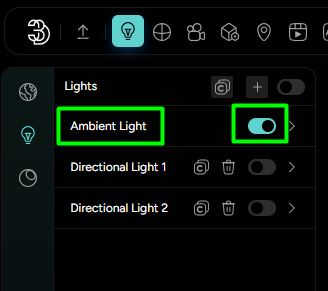
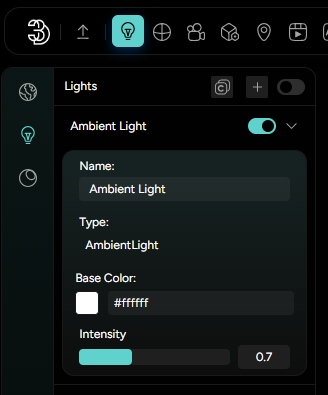
You can enable Ambient light by simply toggling it on (Figure 5). Once activated, you can expand it by clicking on it and it shows additional customization options that allow you to fine-tune its behavior in the scene (Figure 6).
-
The first option is the
name field, where you can give the light a custom label. This is especially useful when working with multiple lights in a scene, helping you to stay organized and easily identify each light source. -
Next, you’ll see the
color setting, which lets you define the overall tone of the ambient illumination. By default it’s set to white, providing neutral lighting across the model. However, you can adjust the color to introduce different moods or stylistic effects. -
Lastly, the
intensity slidercontrols how bright the ambient light appears. Increasing the intensity will lift the overall brightness of the scene, while lowering it will create a more subdued base lighting, ideal when combining ambient light with other directional or point sources for a more dynamic setup.