Environment Map
An environment map is a panoramic image, typically in HDR (High Dynamic Range) format, that surrounds your 3D scene to simulate real-world lighting and reflections. It acts as both a background and a light source, creating a more immersive and photorealistic visual experience.
You can find the Environment Map settings within the Lighting tab, represented by the first icon at the top of the left panel (Figure 1). This section allows you to control the global lighting environment of your 3D scene using a panoramic HDR image.
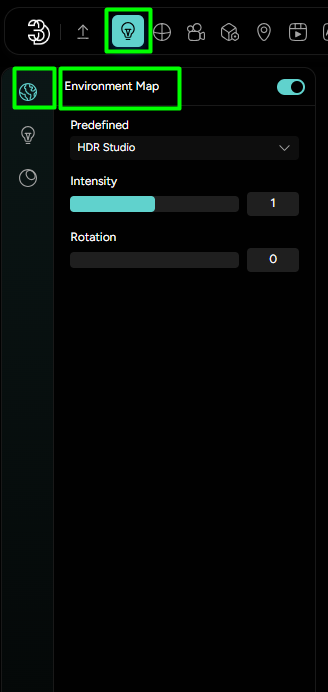
By default, with each Workspace, an HDR Studio environment map is present, but users can also add their own custom environment map, by choosing ‘Custom’ in the dropdown and then uploading the EM they want to use.
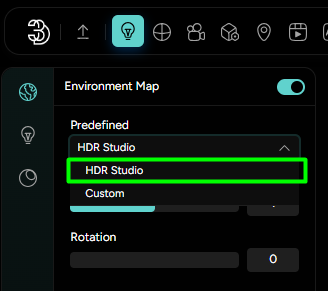
The Intensity slider allows you to fine-tune how strongly the map affects the scene, while the Rotation option lets you adjust the direction of the lighting and reflections by rotating the environment image around the model.
For instance, an environment map can depict a forest, urban skyline, or abstract patterns, which in turn affects the colors and intensities of the reflections on your models. They are essential for creating depth, realism, and a sense of place, whether you're aiming for a photorealistic look or a stylized aesthetic.
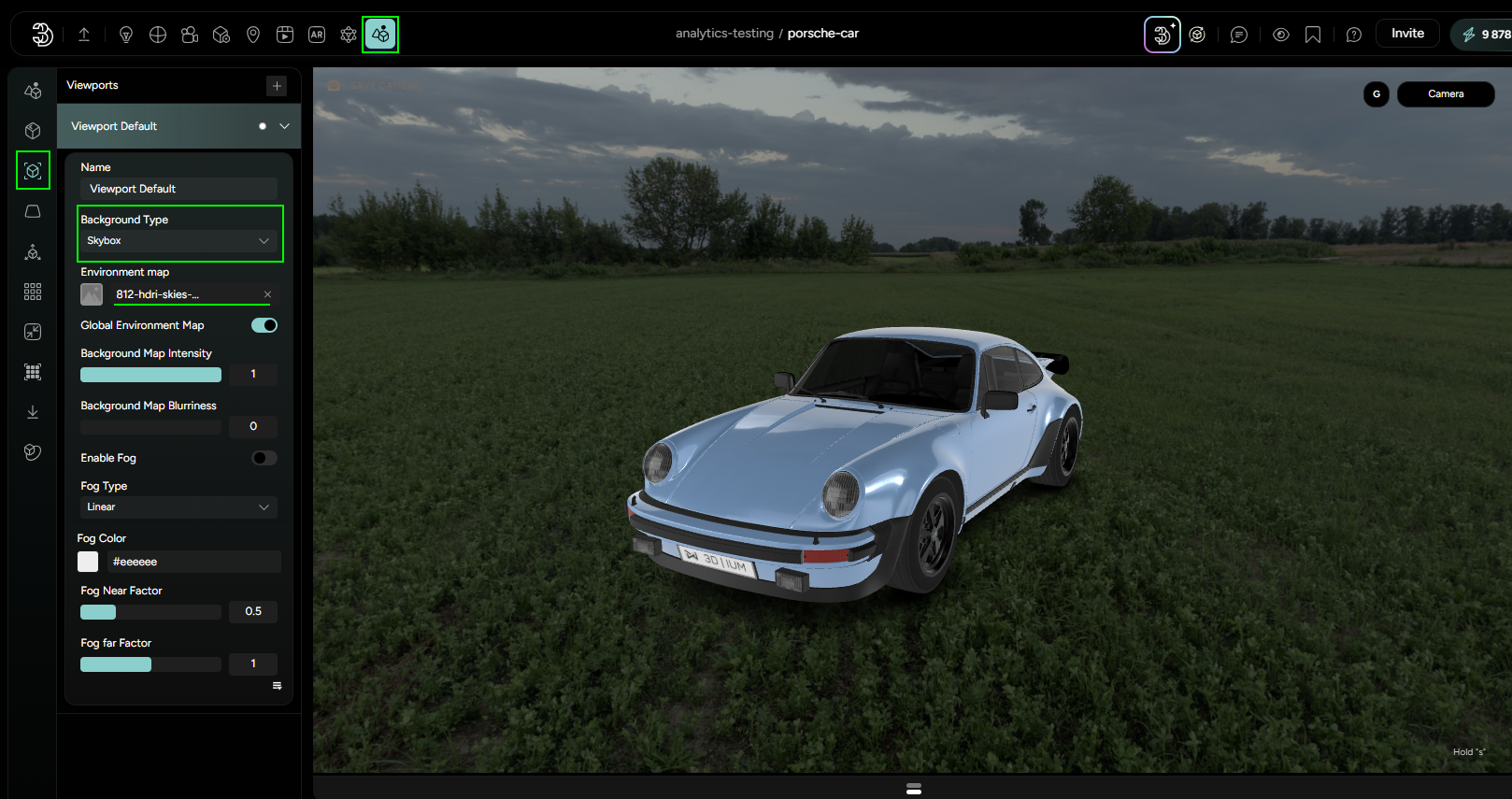
To also see the skybox, users can go to Scene → Viewport and set the background to Skybox option. By default it will show the image of the global EM, but here other images can be uploaded also.