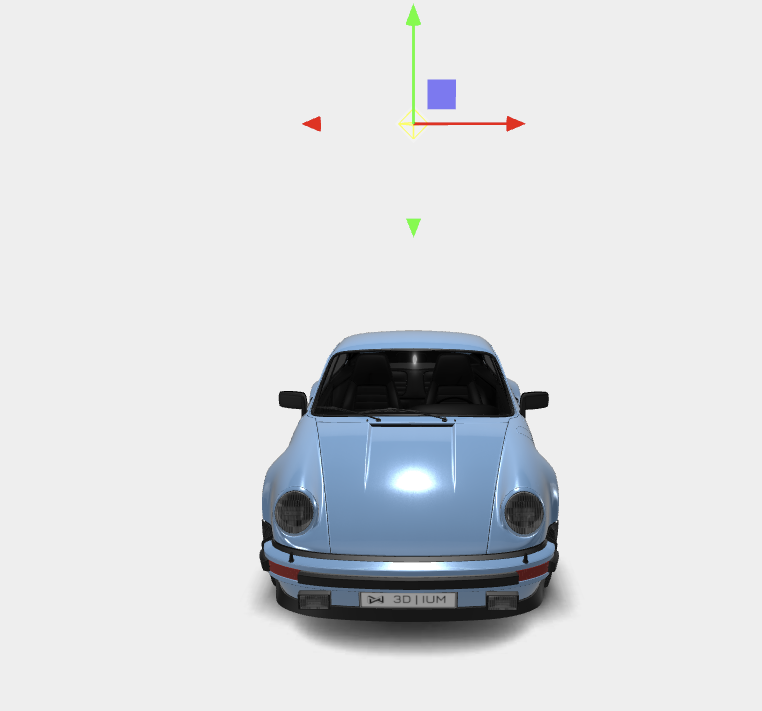
Point Light
Point light is a light source that emits light in all directions from a single point in space, similar to a bare light bulb. Hence why, it does not have a specific target, unlike directional light. To add a Point Light, click the plus icon in the Lighting tab.
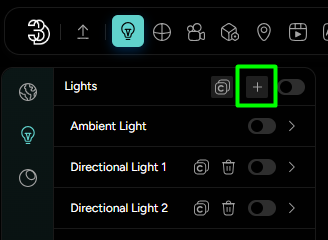
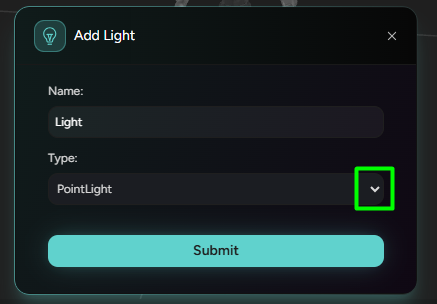
This opens a new window (Figure 12) where you can:
- Assign a name to the light.
- Choose the light type from the available options: Point, Spotlight, Directional, Hemisphere or RectArea light.
After adding the Point Light, its settings panel becomes available with a range of customization options. Many of these are the same as for Directional Light.
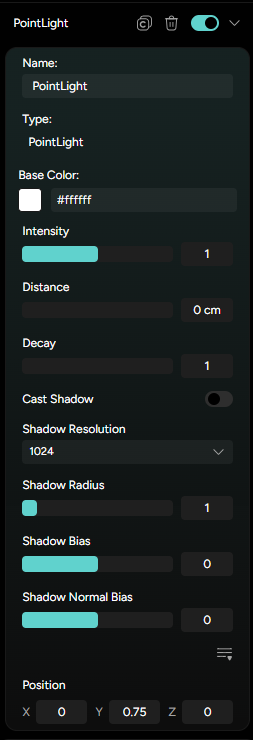
Point light-specific settings:
-
Distance: This property determines the maximum range of the point light. It defines the radius at which the light's intensity effectively reaches zero:- A small Distance value means that the light will affect only objects close to the light source, creating a tight and localized pool of light.
- A larger Distance value allows the light to reach further into the scene, illuminating more objects and expanding the influence of the light source.
- If Distance is set to 0 (the default), the point light has an unlimited range and will affect all objects in the scene, regardless of their distance from the light, until the intensity decays to an imperceptible level according to the Decay setting.
-
Decay: The intensity of a point light diminishes with distance, this means that objects closer to the light are brightly lit, while those further away receive less light, simulating real-world light falloff.- A Decay value of 2 corresponds to the real-world inverse-square fall-off—intensity decreases proportionally to the square of the distance from the light, which is how light behaves in reality. However, you can set the Decay to other values specific to your artistic needs.
Point light has a position setting that determines its exact location in 3D space. You can access the position controls by clicking the three horizontal lines icon to expand the transform settings. You can find the X,Y and Z input fields where you can manually enter numeric values to place the light exactly where you need it.