The Editor Tab
The Editor Tab/The Main Ribbon is the top-most region of the 3D Designer Interface where all of the Production tools and Features are located. Most of its expanded content is available once a desired icon is clicked, after which it shows up in the left-side Editor Menu. The editor bar is divided into 3 major sections (Figure 1.):
- Left Section (numbers 1-11 in the Figure 1) - Editing tools and Production;
- Collection Link (number 12 in Figure 1) - Link to the collection to which the current workspace belongs to;
- Right Section (numbers 13 - 19 in Figure 1) - Features and Deployment options.
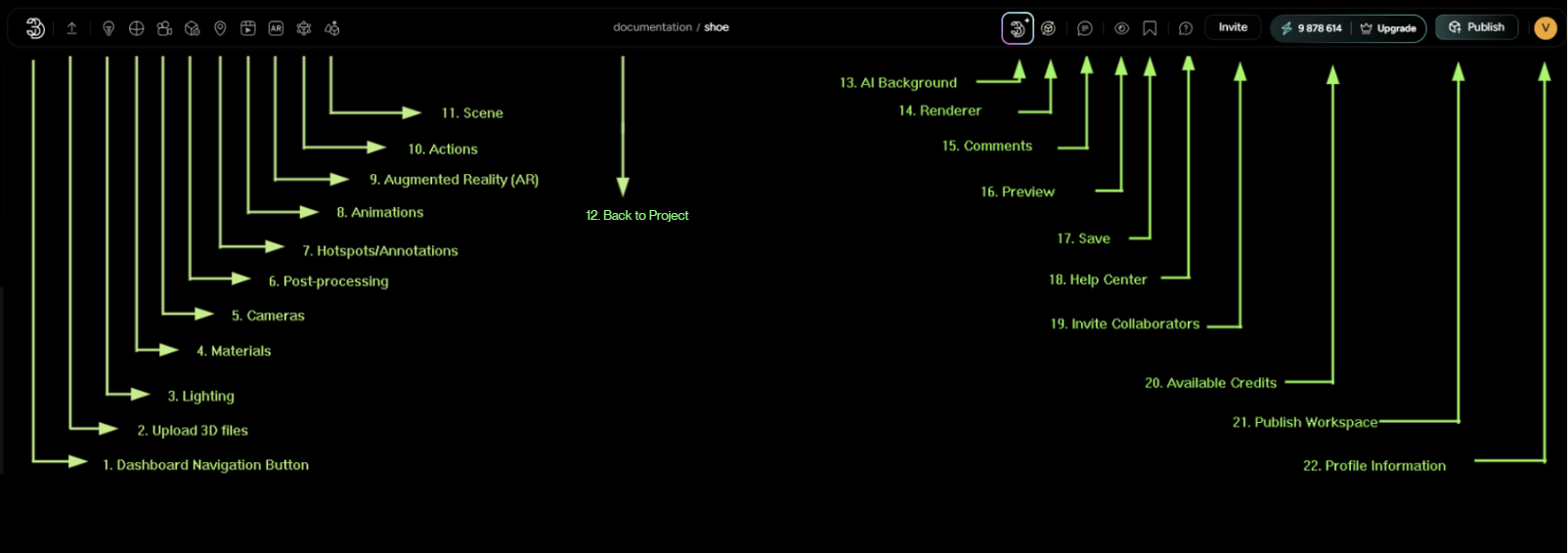
Following features are present within the top-most bar of the 3D designer interface (numbered as marked in Figure 1.):
- Dashboard Navigation Button - Link to the Dashboard;
- Upload - Opens up the “Drag and Drop”- Upload screen ;
- Lighting - Opens up the Lighting options in the Left-side Menu;
- Materials - Opens up the Material settings in the Left-side Menu;
- Cameras - Opens up the Camera and Camera control settings in the Left-side Menu;
- Post-Processing - Opens up the Post-Processing settings in the Left-side Menu;
- Hotspots - Opens up the Hotspot options in the Left-side Menu;
- Animations - Opens up the Animation previews and options in the Left-side Menu;
- Augmented Reality (AR) - Opens up the AR upload options in the Left-side Menu;
- Actions - Opens up the Actions settings in the Left-side Menu;
- Scene - Opens up the Scene contents and settings in the Left-side Menu;
- Collection - Displays the current location of the user, as well as the link to the collection;
- AI Background - Opens up the AI Background Feature;
- Renderer - Opens up Renderer Feature which allows users to create HQ renders of the scene;
- Review Mode/Comments - Opens up the Reviewer mode;
- Preview - Opens up the Preview screen and settings of the Distribution;
- Save - Saves the current state of the Workspace;
- Help Center
- Invite Collaborators - Share Your workspace with others
- Credit Amount and Upgrade Options - Shows number of available credits, as well as options to upgrade them
- Publish - Publishes the current Scene and creates the latest Distribution link;
- User information - Takes the User to the Profile information.