The Library
The Library is a mid-bottom Menu that is retractable by pressing the keyboard - shortcut “L”. This menu lists and compiles all the assets that are imported into the workspace and offers several key options for their navigation, organization and application.
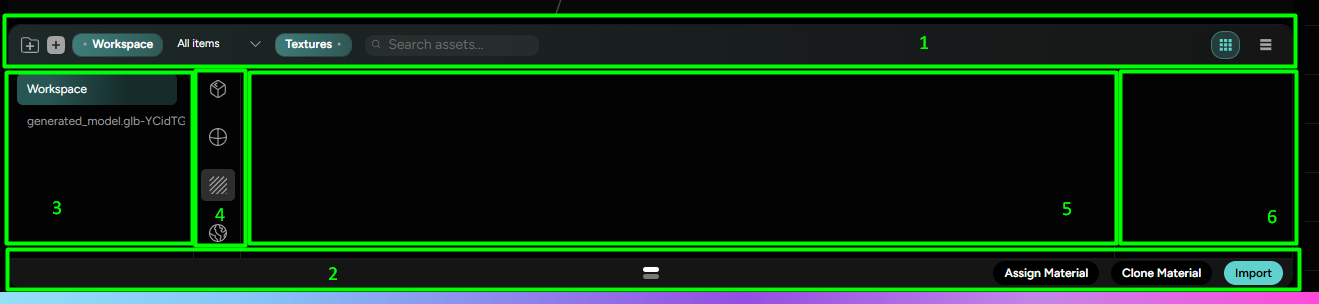
The Library is composed of (Listed as marked in Figure 1.):
- The Search bar with Filter Options - allows for quick and efficient asset locating
- The bottom bar with Advanced inter-workspace asset exchange options
- Sort-by-category-filters
- Sort-by-asset-type-filters
- The Asset storage space - displays the assets
- The Asset-info space - displays the asset size, file type and status in the scene.
While working in the Workspace, the Library is an artist’s best friend. It is a single best tool for asset management that facilitates flexible and dynamic workflow and keeping track of the progress.
The Search bar has:
- New folder button - Creates a new Library folder to drag and drop assets into
- Refresh button - Refreshes the library appearance
- Item filter - Cycles the shown assets between All, Active and Inactive
- Search bar - Displayed Library assets based on text-input search.
The bottom bar features:
- Assign Material option - Allows quick assigning of a chosen material to multiple parts
- Clone Material option - Allows cloning the chosen material to different Workspaces of the same collection
- Import option - Allows importofexternal assets.