The Right-side Object and Scene Menu
The Right-side Menu is split into Object Menu (Marked with 1 and 2 in Figure 1.) and Scene Menu (Marked with 3 in Figure 1).
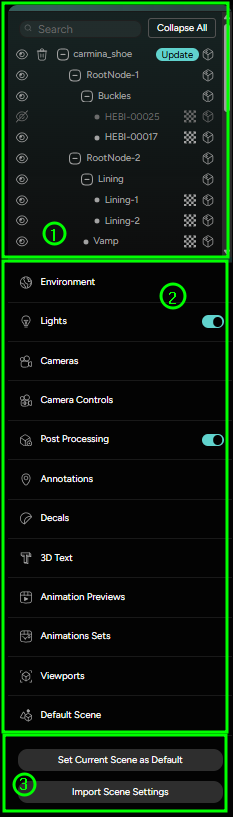
The Object Menu contains everything that can be found in the Scene tab of the main Editor (Figure 1):
- A Scene Outliner - A menu that lists all the meshes and nodes that are present in the Scene, with data on their visibility and active Overlays
- A Scene Editor - A menu which lists all other objects that comprise a scene: Environment, Lights, Cameras, Camera Controls, Post-Processing Settings, Annotations (Hotspots), Decals, 3D Text, Animation Previews, Animation Sets, Viewports, Default Scene tab (which opens up the Scene settings on the left).
Left-side and Right-side Scene Menus
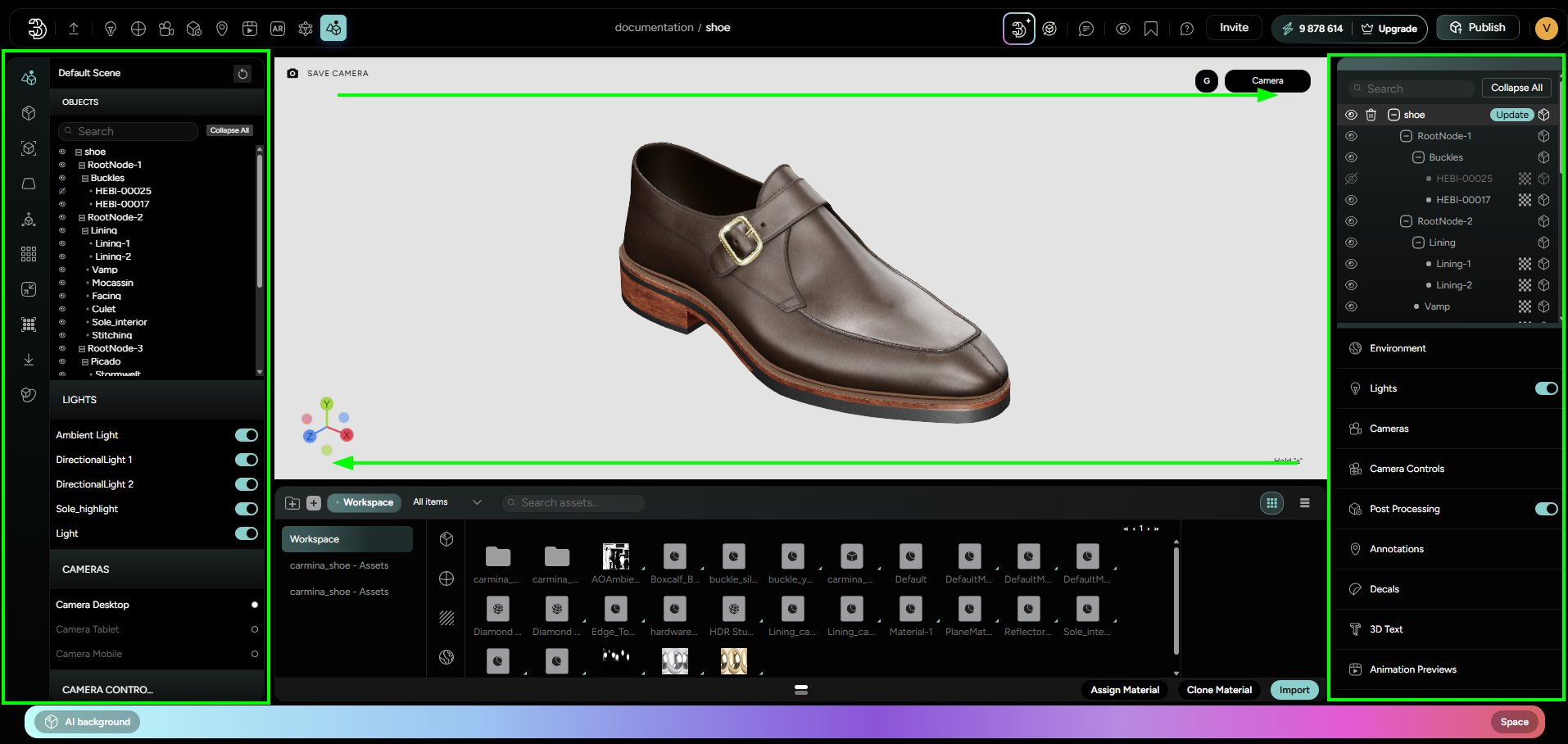
This is intentionally implemented like this due to the user’s need to keep the active scene experimental and separate from the active distribution. Therefore, the Right-side Scene Menu offers following options:
- Set Current Scene as a Default - A pre-publish step that sets the current viewed scene as an active Default scene of the Left-side Scene Menu;
- Import Scene Settings - Pasting a .json obtained from the scene objects copied from a different Workspace. This is mainly used for modular and standardized work approaches to a Collection that has many inter-changeable or similar workspaces.