3D Viewport
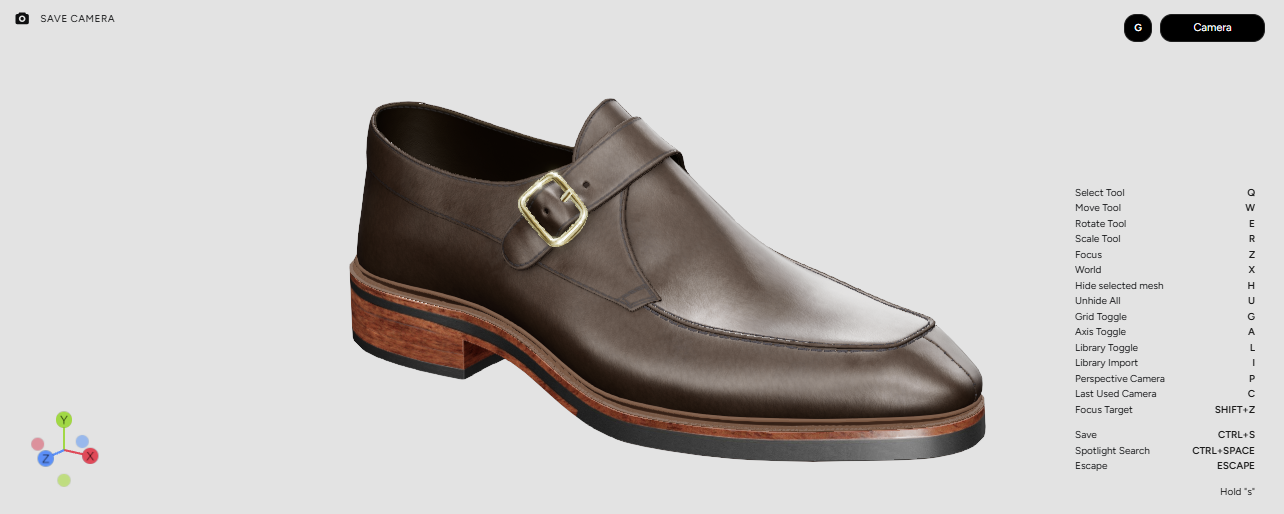
The 3D Scene/3D Viewport is the main part of the Platform’s interface and it is a window into a digital 3D space where all the Workspace setup takes place.
Besides the 3D architecture of the virtual space, the 3D Scene section also has (Listed as marked in Figure 2):
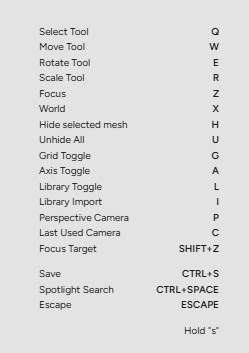
Using keyboard shortcuts enables much faster and more efficient scene manipulation. Scene management tools are essential for smoother workflow and they provide:
Select Tool- Switches the cursor for pure selection of the scene objectsMove Tool- Enables the Move gizmo for a chosen object/partRotate Tool- Enables the Rotate gizmo for a chosen object/partScale Tool- Enables the Scale gizmo for a chosen object/partFocus- Focuses the chosen object/part by aligning it with the center of the viewing planeWorld- Focuses the Camera to the Scene/World originHide Selected Mesh- Hides Selected Mesh/PartUnhide All- Unhides all hidden Meshes/PartsGrid Toggle- Toggles the ground plane - GridAxis Toggle- Toggles the Scene Navigation gizmoLibrary Toggle- Toggles the Library sectionLibrary Import- Toggles the import panel for the LibraryPerspective Camera- Switches to Perspective CameraLast Used Camera- Switches to Last Used CameraFocus Target- Places the viewing target to the origin of the selected Mesh/PartSave- Saves the current state of the Workspace (irreversible)Spotlight Search- Opens up a targeted search bar for scene assetsEscape- Exits the current function.