Device Compatibility Checks
Desktop
Texture Resolution
You can use any editing software to reduce the image size. It is important to always keep the image in the power of 2 rule ( 1024px, 512px, 256px, 128px).
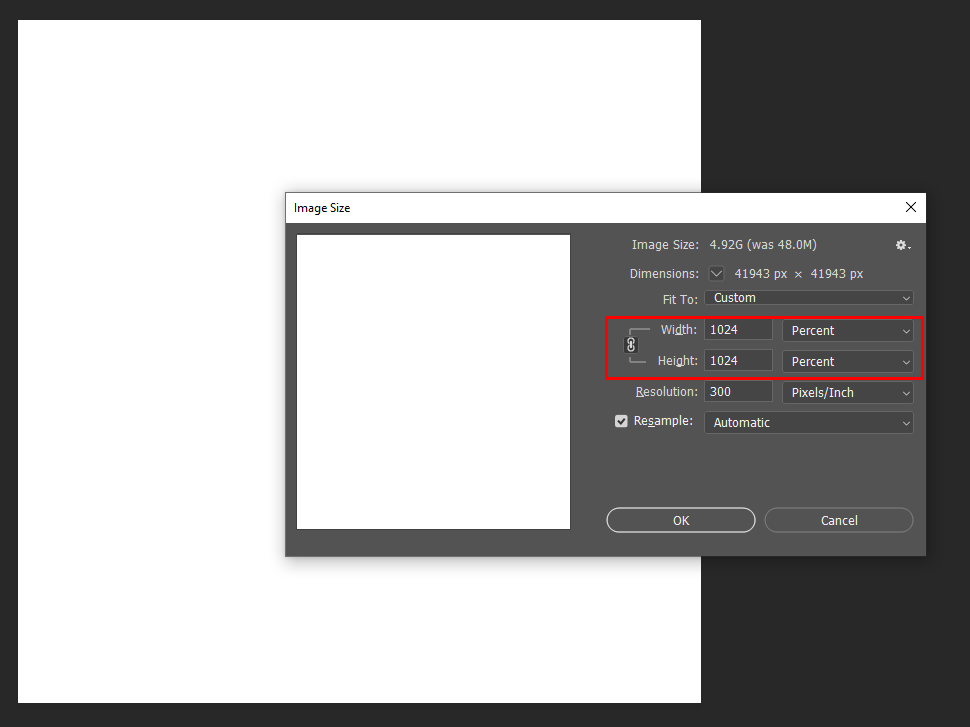
Texture Size
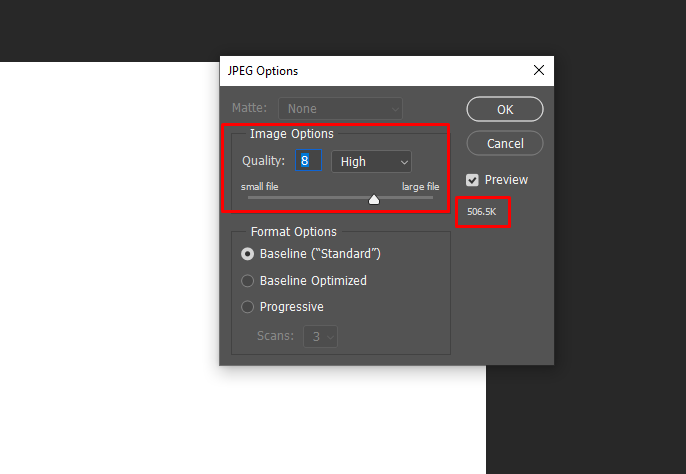
With lower image pixel size, your MB size should also be lower. In case you need to further downgrade the size of the texture you can do it on multiple free online websites that can do this for you or with Photoshop.
Total Materials in Scene
Having more than 30 materials active in the workspace will impact the performance quality of your 3D workspace on desktop devices. So you should try to reduce the count of materials to 10 materials. Here is how you can delete materials.
- Navigate to our library
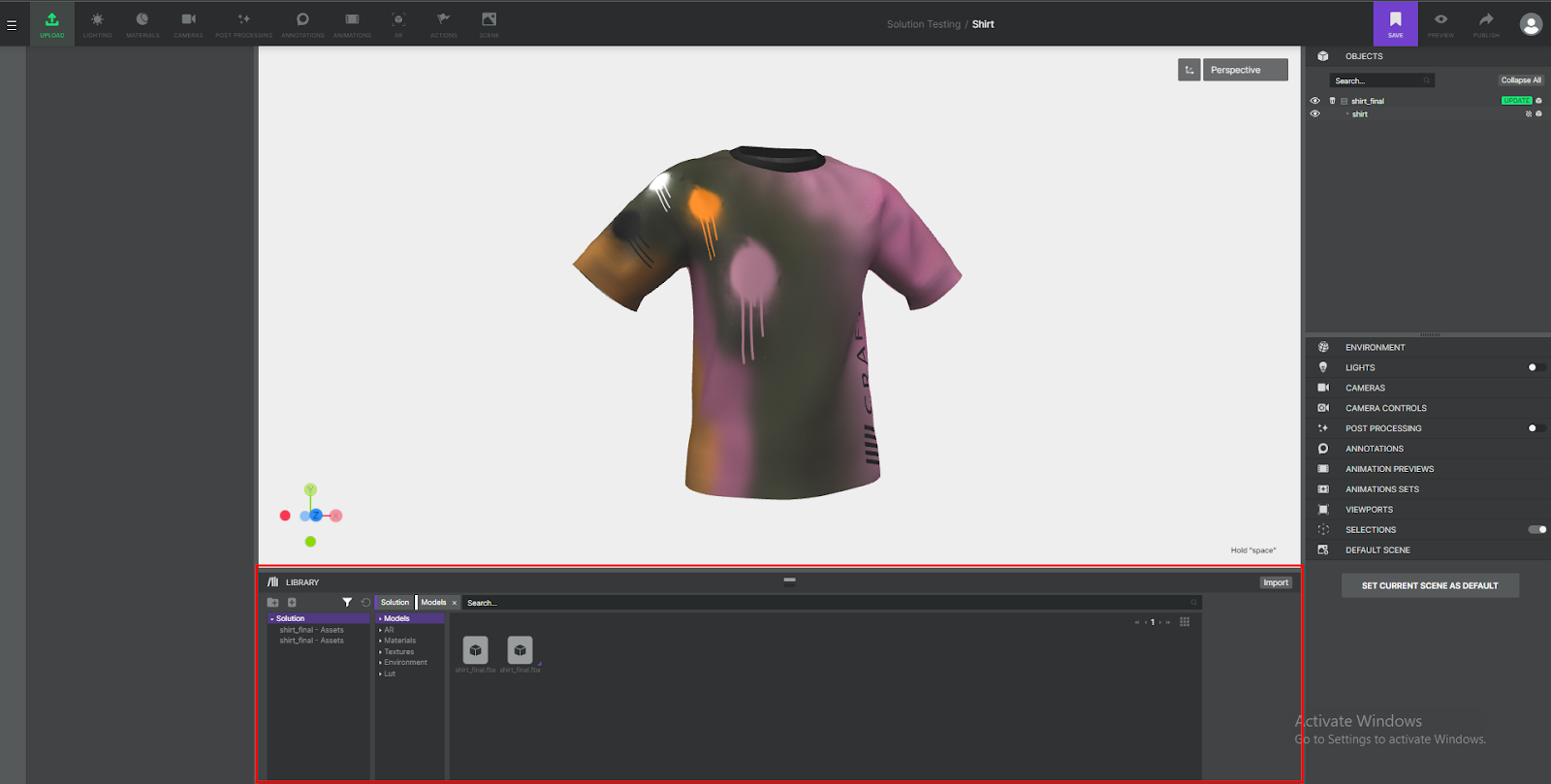
- Filter to only materials:
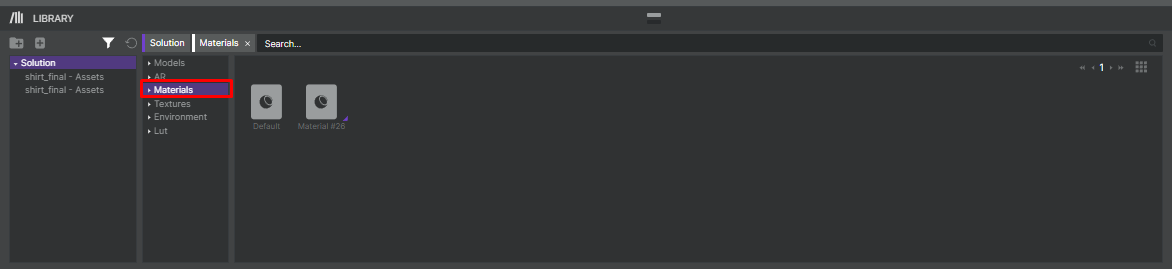
- All of the materials that have purple triangles on them are being used in the workspace. If you want to delete material, you first need to remove it from being used on a workspace (assign some other material)
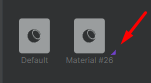
- Right-click on the unused material (the one without the purple triangle) and delete it.

Total Lights in Scene
Because with each physical light we decrease the performance on the user's desktop device, we advise keeping the number of physical lights in the scene up to 8 for desktop devices.
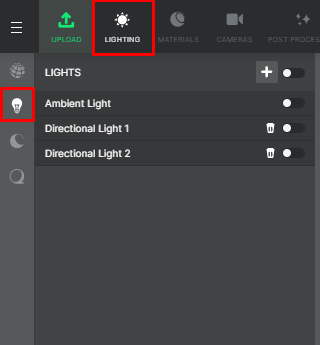
Please note that the Ambient light doesn’t count to the limit of 8 lights.
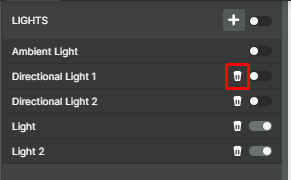
If you need to delete any lights you can simply do that by clicking on the trash bin icon.
Total Vertices in Scene
For best compatibility please make sure that your workspace with all its 3D models combined has less than or equal to 120.000 active vertices for using the workspace on desktop devices.
So what do we mean by active vertices?
You can have a model with more vertices than allowed but divided into different meshes. It is important to hide all meshes that are not going to be used in the default view. (The first view of the workspace when it's loaded for users.)
Let's use this sofa as an example:
We divided the sofa into 5 parts. But we see there is a blue part, that we want to hide in the default workspace.

We export this geometry and upload it into the platform. We see the same meshes as we did in 3DS max and the blue part.

If we want to hide the blue part during our workflow we can simply click on the eye icon on the right part of the screen. However, this won't make the blue part of the sofa turn off when you publish the workspace. It just hides it in your viewport for easier workflow.

If you want to turn off the blue part of the sofa, so it's not rendered in the default scene, you need to turn it off here.

All vertices that belong to meshes that you turn off in this way won't contribute to the Total Vertices in the Scene.
Total Triangles in Scene
For best compatibility please make sure that your workspace with all its 3D models combined has less than or equal to 80.000 active triangles for using the workspace on desktop devices.
So what do we mean by active triangles?
You can have a model with more triangles than allowed but divided into different meshes. It is important to hide all meshes that are not going to be used in the default view. (The first view of the workspace when it's loaded for users.)
Let's use this sofa as an example:
We divided the sofa into 5 parts. But we see there is a blue part, that we want to hide in the default workspace.

We export this geometry and upload it into the platform. We see the same meshes as we did in 3DS max and the blue part.

If we want to hide the blue part during our workflow we can simply click on the eye icon on the right part of the screen. However, this won't make the blue part of the sofa turn off when you publish the workspace. It just hides it in your viewport for easier workflow.

If you want to turn off the blue part of the sofa, so it's not rendered in the default scene, you need to turn it off here.

All triangles that belong to meshes that you turn off in this way won't contribute to the Total Triangles in the Scene.
Overlay
For using the overlay function (both text and image) please make sure that you set the maximum overlay size to 1024px or below if you plan to use this workspace on Desktop.
Overlay resolution for text
Overlay resolution for images

Model Mesh
For the most optimal performance, we suggest that each separate model you upload (fbx, obj, or glb) consists of maximum 30 separate elements(meshes). Here is an example of what is considered an element(mesh).
4 separate elements in 3d max:

A larger amount of elements may cause performance issues on some older devices.
You can have multiple models in your scene, but the total amount of vertices and triangles should match our guidelines in the scene section.
Model Vertices
For best compatibility please make sure that each of your 3D models has less than 320.000 vertices for using the workspace on desktop devices. It is important to read our Total Vertices in Scene guidelines to better understand scene limitations.

Model Triangles
For best compatibility please make sure that your 3D model has less than 160.000 triangles for using the workspace on desktop devices. It is important to read our Total Triangles in Scene guidelines to better understand scene limitations.

Mobile
Texture Resolution
You can use any editing software to reduce the image size. It is important to always keep the image in the power of 2 rule ( 512px, 256px, 128px).

Texture Size
With lower image pixel size, your mb size should also be lower. In case you need to further downgrade the size of the texture you can do it on multiple free online websites that can do this for you or with Photshop.

Texture Extension
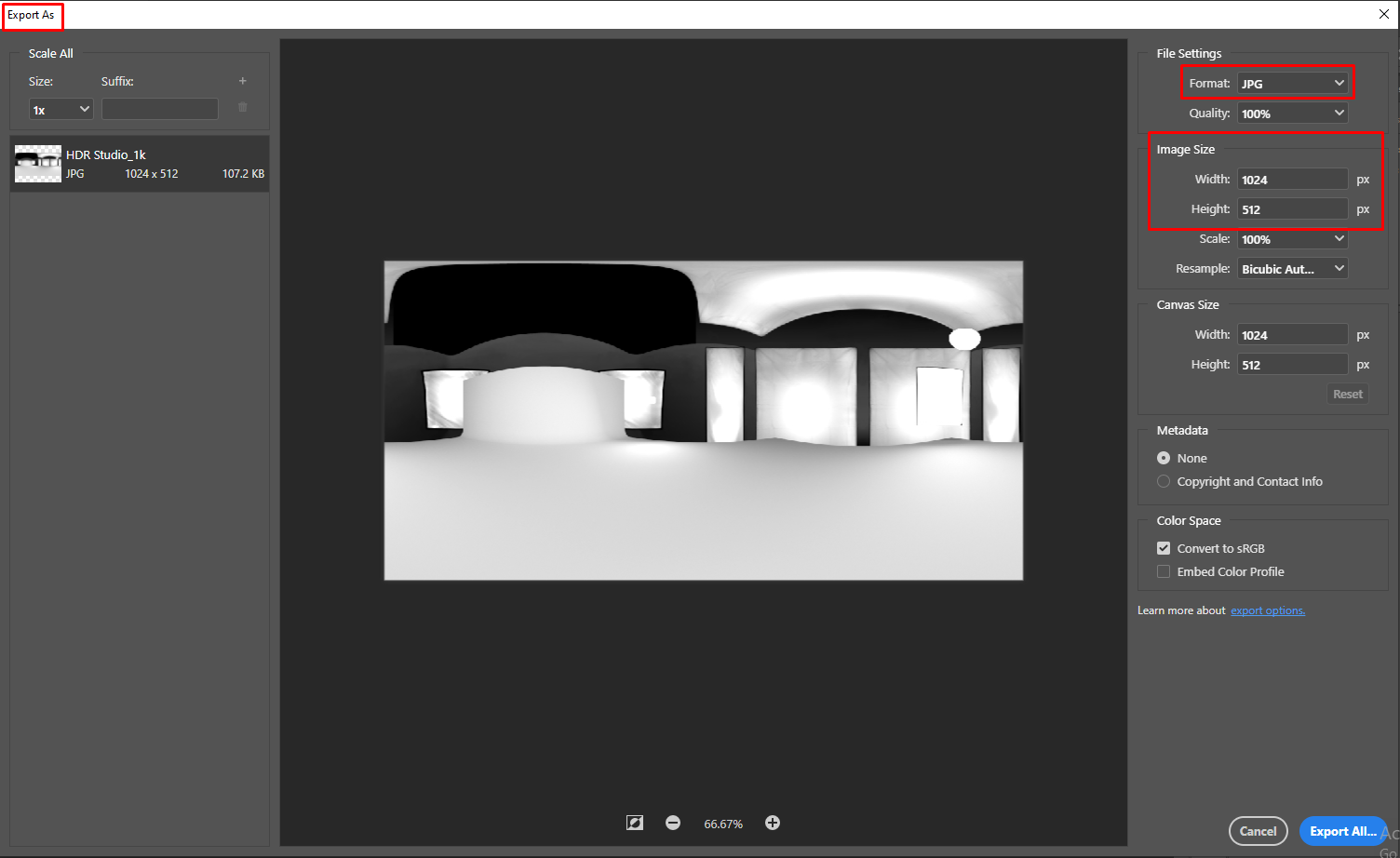
For mobile devices, HDR maps are causing a lot of issues. Therefore it’s best to convert HDR textures to .jpg or .png format. You can do this in Photoshop by selecting Export As in the File dropdown menu, or you can select some of the free online websites to convert it for you.
Total Materials in Scene
Having more than 10 materials active in the workspace will impact the performance quality of your 3D workspace on mobile devices. So you should try to reduce the count of materials to 10 max. Here is how you can delete materials.
- Navigate to our library
- Filter to only materials:
- All of the materials that have purple triangles on them are being used in the workspace. If you want to delete material, you first need to remove it from being used on a workspace (assign some other material)
- Right-click on the unused material (the one without the purple triangle) and delete it.
Total Lights used in Scene
Because with each physical light we increase the stress on the users mobile device, we advise to keep the amount of physical lights in the scene up to 2 for mobile devices.
As the Ambient light doesn’t count toward this limit you can use these two default lights that come with the new scene.
If you need to delete any lights you can simply do that by clicking on the trash bin icon.
Total Lights in Scene
Each physical light decreases performance on mobile devices. Therefore we advise keeping the number of physical lights in the scene up to 2 for mobile devices.
As the Ambient light doesn’t count toward this limit you can use these two default lights that come with the new scene.
If you need to delete any lights you can simply do that by clicking on the trash bin icon.
Total Vertices in Scene
For best compatibility please make sure that your workspace with all its 3D models combined has less than or equal to 60.000 active vertices for using the workspace on mobile devices.
So what do we mean by active vertices?
odel with more vertices than allowed but divided into different meshes. It is important to hide all meshes that are not going to be used in the default view. (The first view of the workspace when it's loaded for users.)
Let's use this sofa as an example:
We divided the sofa into 5 parts. They combined have over 60.000 vertices. But we see there is a blue part, that we want to hide in the default workspace.

We export this geometry and upload it into the platform. We see the same meshes as we did in 3DS max and the blue part.

If we want to hide the blue part during our workflow we can simply click on the eye icon on the right part of the screen. However, this won't make the blue part of the sofa turn off when you publish the workspace. It just hides it in your viewport for easier workflow.

If you want to turn off the blue part of the sofa, so it's not rendered in the default scene, you need to turn it off here.

All vertices that belong to meshes that you turn off in this way won't contribute to the Total Vertices in the Scene. Therefore this model will be lower than 60.000 vertices.
Total Triangles in Scene
For best compatibility please make sure that your workspace with all its 3D models combined has less than or equal to 30.000 active triangles for using the workspace on mobile devices.
So what do we mean by active triangles?
You can have a model with more triangles than allowed but divided into different meshes. It is important to hide all meshes that are not going to be used in the default view. (The first view of the workspace when it's loaded for users.)
Let's use this sofa as an example:
We divided the sofa into 5 parts. But we see there is a blue part, that we want to hide in the default workspace.

We export this geometry and upload it into the platform. We see the same meshes as we did in 3DS max and the blue part.

If we want to hide the blue part during our workflow we can simply click on the eye icon on the right part of the screen. However, this won't make the blue part of the sofa turn off when you publish the workspace. It just hides it in your viewport for easier workflow.

If you want to turn off the blue part of the sofa, so it's not rendered in the default scene, you need to turn it off here.

All triangles that belong to meshes that you turn off in this way won't contribute to the Total Triangles in the Scene.
Post Processing
We recommend turning off postprocessing when using workspaces on a mobile device as it significantly reduces performance.
Overlay
For using the overlay function (both text and image) please make sure that you set the maximum overlay size to 256px or below if you plan to use this workspace on Mobile devices.
Overlay resolution for text.
Overlay resolution for Images.

MipMaps
We recommend turning off MipMaps when using workspaces on mobile devices, as it significantly reduces performance.

Power Preference
We recommend setting Power preference to low-power when using workspaces on a mobile device as it significantly improves performance.

Frame Rate Throttling
We recommend setting the Frame Rate Throttling on when using workspaces on a mobile device as it significantly improves performance.

Shadow Map
We recommend disabling shadow maps when using workspaces on a mobile device as it significantly improves performance.

Model Meshes
For the most optimal performance, we suggest that each separate model you upload (fbx, obj, or glb) consists of maximum 15 separate elements(meshes). Here is an example of good practice.
4 separate elements in 3d max:

A larger amount of elements may cause performance issues on some older devices.
You can have multiple models in your scene, but the total amount of vertices and triangles should match our guidelines in the scene section.
Model Vertices
For best compatibility please make sure that each of your 3D models has less than 160.000 vertices for using the workspace on mobile devices. It is important to read our Total Vertices in Scene guidelines to better understand scene limitations.

Model Triangles
For best compatibility please make sure that your 3D model has less than 80.000 triangles for using the workspace on mobile devices. It is important to read our Total Triangles in Scene guidelines to better understand scene limitations.
