Platform Navigation
Search
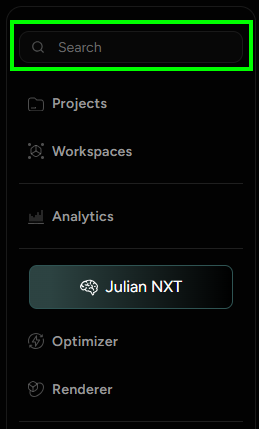
All Projects and workspaces are searchable in the top-left Platform’s Search bar (shown in Figure 1), either via name or their respective ID.
After the search bar input, the search results will be listed both for Projects and Workspaces alike.
Alternatively, a user is also able to click on the See All Results button, which will take them to an expanded search space with inter-changeable “Projects” and “Workspaces” tabs.
In addition to the global search, separate search bars are available for filtering Projects and workspaces individually.
Settings
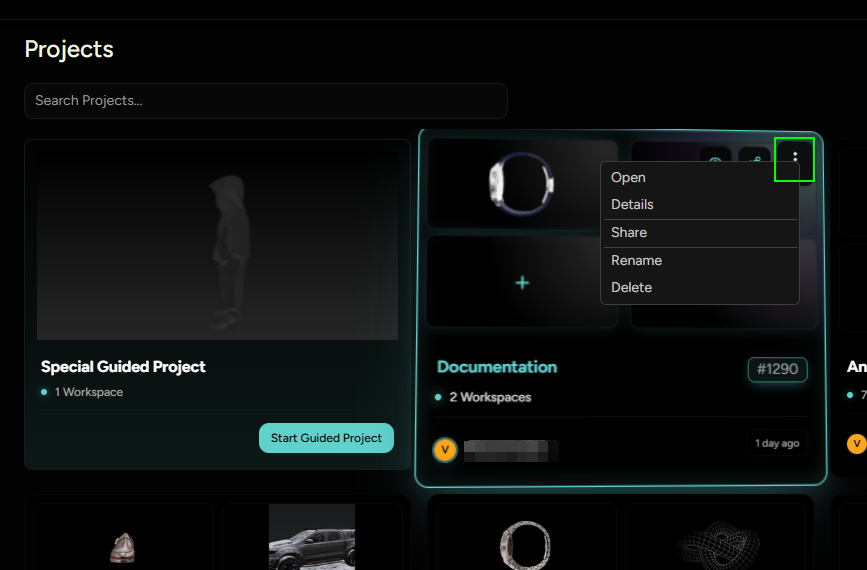
Both Project and Workspace feature an expanded settings option: a three vertical dots - icon at the end of the Project or Workspace row, that unveils more options to work with (Figure 2), as well as right mouse click.
-
Project menu allows: Opening up a Project, Viewing its Details, Sharing it with other users within a user’s organization through different assigned roles, viewing its Analytics data, Renaming it and Deleting it.
-
Just like Project menu, the Workspace menu allows: Viewing its Details, Sharing it with other users within a user’s organization through different assigned roles, viewing its Analytics data, Renaming it and Deleting it. Additionally, the Workspace menu also enables:
- Editing - Entering a 3D Designer, also available via just clicking on the Workspace name.
- Reviewing - Entering a Reviewer mode, also available from a 3D Designer.
- Unpublishing - Undoing a Publish if it were active.
- Cloning - A process of copying a Workspace that is available via Clone-option in the expanded Workspace settings.
Cloning a Workspace
The cloned workspace is completely identical to the state of the Original Workspace in the moment of cloning and it is assigned its own personal Workspace ID. This option is most commonly used for capturing different states of the same Product and its usage possibilities. It is also useful when you need to safe-test different approaches or have fun in the design process.