Texture Optimization
When it comes to texturing, multiple methods may be used to save up on storage space. One such method is preparing an atlas UV layout. As a result, a single diffuse, roughness, normal, etc. map is applicable to multiple meshes. Besides reducing the quantity of texture maps, using this approach allows for much faster optimization, as it requires a lot less work.
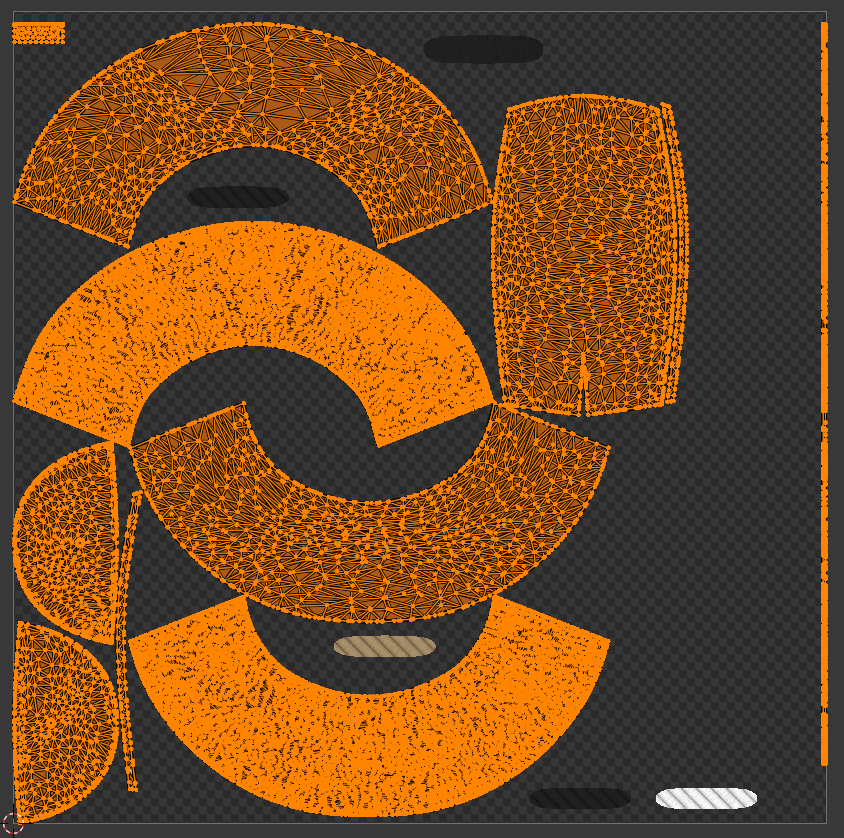
Once an atlas UV layout has been set, the model can be textured. Creating high-resolution textures to start with, is a failproof approach to texturing. Once high-resolution textures have been created, it is time to compress them. In order to compress texture maps included in the .glb file, the maps first need to be extracted. In blender go to: File → External Data → Unpack Resources.
Shown in Figure 1. is the size of original texture maps, before compression.
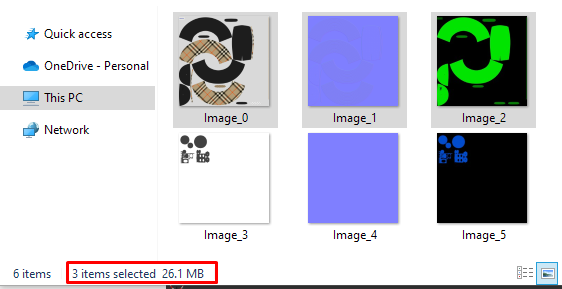
The first step of compression is lowering the resolution of the texture. It is generally advised to use textures of the following resolutions:
- 512x512px
- 1024x1024px
In very specific cases textures that are the resolution of 2048x2048px may be used.
Next in line is checking the bit-depth of the textures. In most cases, a bit depth of 8 bits is just enough.
When it comes to exporting, keep in mind the level of compression which different file formats offer. Exporting as .jpeg compared to .png will lead to a higher compression rate. However, exporting as .png as part of a multiple exports process, has been proven to give the best ratio of size and quality retention. The multiple export process considers converting optimized .png textures to .webp. This proces has been shown to reduce file size by up to 5 times, between the optimized .png texture and the .webp export.
