Set up Okta SSO for Threedium
Connect your organization to Okta so members can sign in to Threedium with their Okta accounts. Once you enable single sign-on, everyone in the organization uses Okta to sign in, including the owner.
Before you begin
You will need:
- An Okta administrator account.
- Access to the Threedium organization owner's account, with a verified email address.
- An Okta account for the owner with the same verified email address as their Threedium account.
- The Threedium sign-in redirect URL for your environment. Ask your Threedium contact if you do not have it.
Only the organization owner can set up or change SSO.
1. Create an application in Okta
- Sign in to the Okta Admin Console.
- Go to Applications > Applications. Your console may call this Applications and Resources > Applications.
- Select Create App Integration. If prompted, choose Classic experience.
- Choose OIDC - OpenID Connect as the sign-in method.
- Choose Web Application, then select Next.
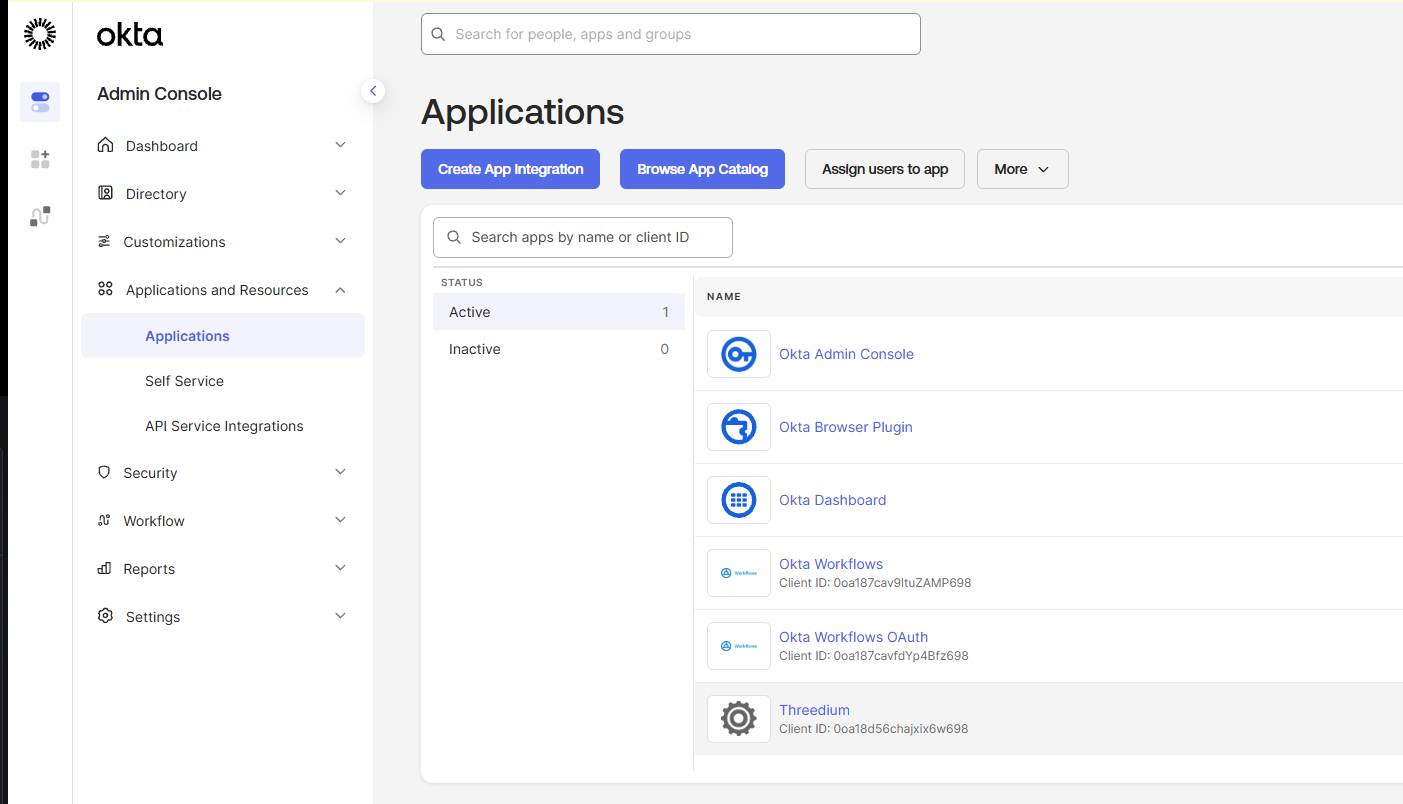
- Name the application, for example
Threedium. - Enter the Threedium sign-in redirect URL in Sign-in redirect URIs. Copy the full URL exactly.
- Use the settings below. Some appear after you save the application.
| Setting | Choose |
|---|---|
| Client definition | Okta-generated client ID |
| Grant type | Authorization Code |
| Client authentication | Client secret |
| Login initiated by | App Only |
| Require PKCE | Leave unchecked |
| Require DPoP | Leave unchecked |
- Assign the owner and the people who will use Threedium. You can assign people individually or through an Okta group.
- Save the application.
These choices match Threedium's supported sign-in flow. For more about the Okta screens, see Okta's application setup guide.
2. Copy your Okta details
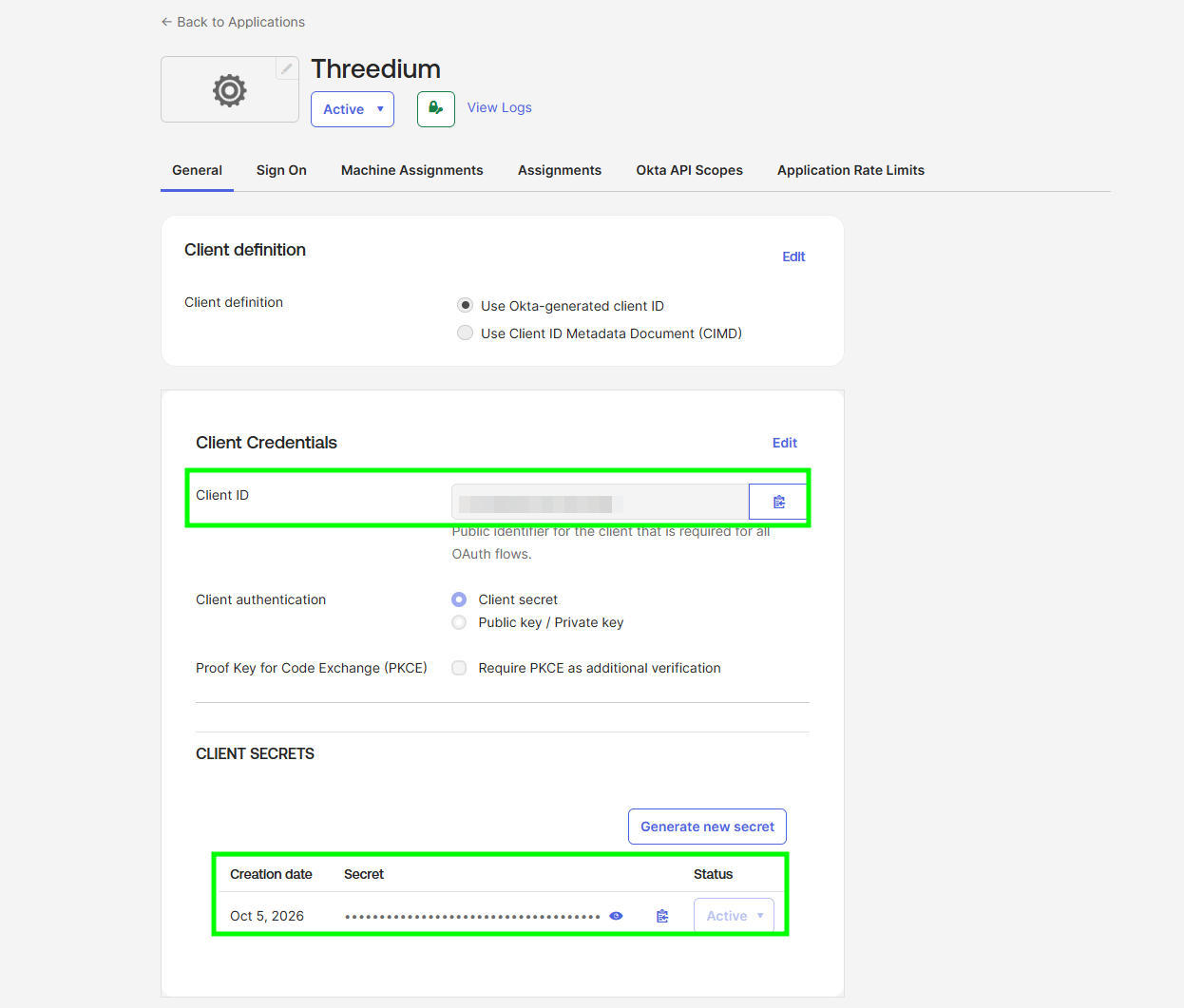
Open the application's credentials and copy its Client ID and Client secret.
You will also need your Okta issuer URL. For most organizations, this is the Okta sign-in address, such as https://company.okta.com. Use the sign-in address without -admin.
If your Okta administrator uses a custom authorization server, ask them for its full issuer URL. See Okta's issuer URL guide if needed.
3. Connect Okta to Threedium
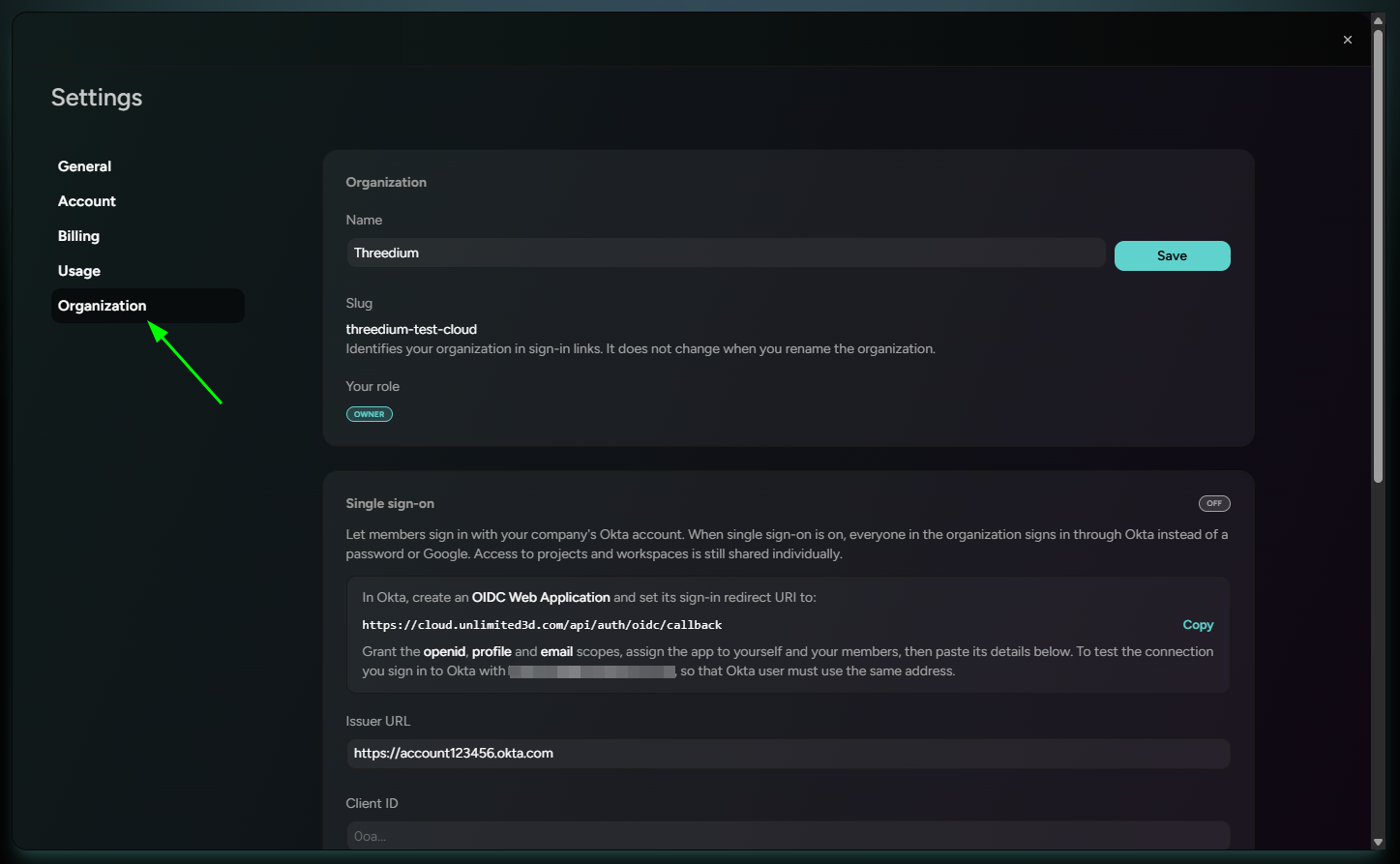
- Sign in to Threedium as the organization owner.
- Open your organization's SSO settings.
- Enter your Okta issuer URL, Client ID, and Client secret.
- Save the connection.
Saving the connection does not enable SSO. Test it first to confirm that you can sign in.
Keep the Client secret somewhere secure. Threedium does not show it again after you save it.
4. Test the connection
- Start the connection test from the SSO settings.
- When Okta opens, sign in with the owner's Okta account.
- Complete the test in the same browser where you started it.
- Return to Threedium and check that the connection is verified.
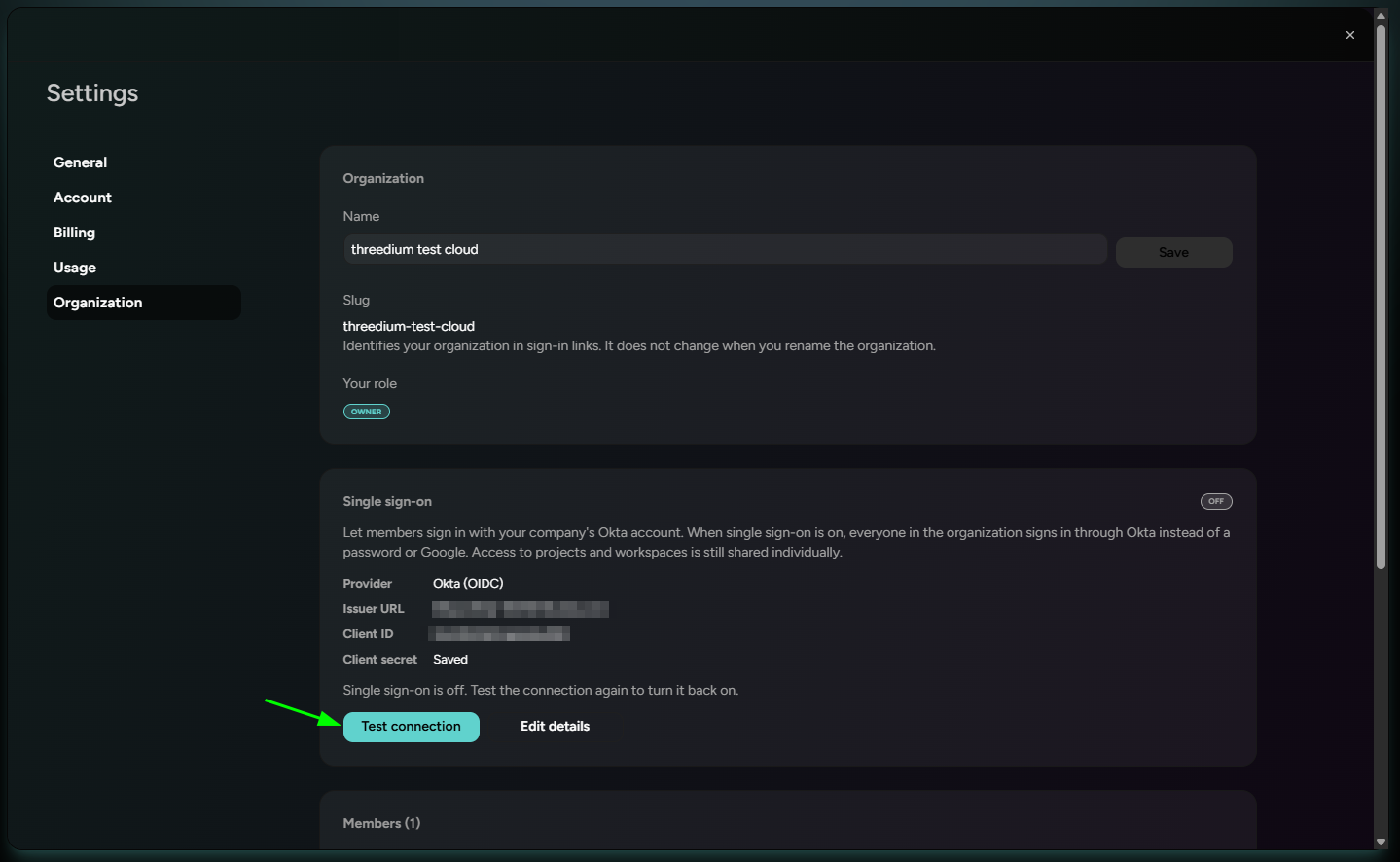
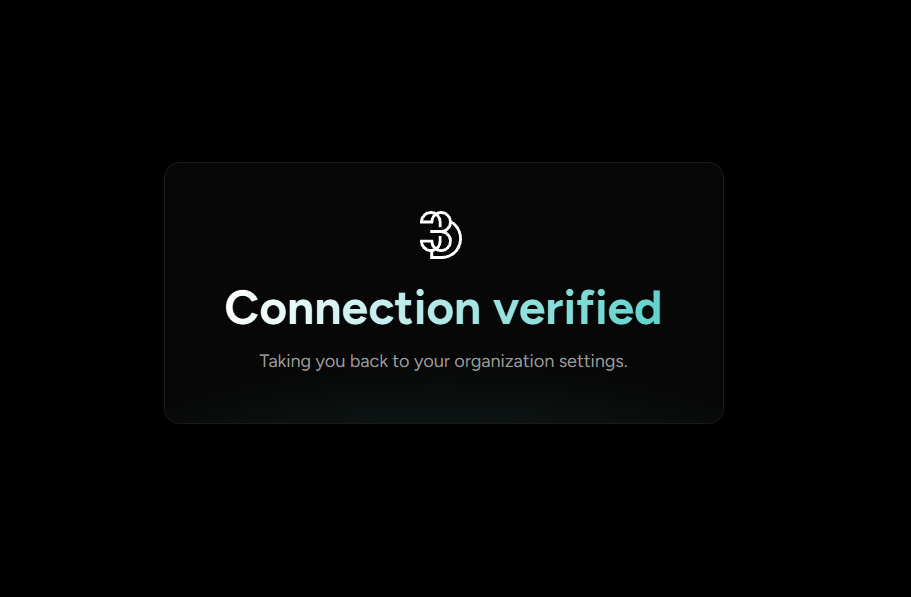
The owner's verified email address in Okta must match their Threedium email address. Complete the test within 10 minutes. If it expires, start a new test.
5. Enable SSO
Before enabling SSO, check that the owner and all current members have access to the Okta application.
Enable SSO in Threedium within 15 minutes of completing the test. If you wait longer, test the connection again.
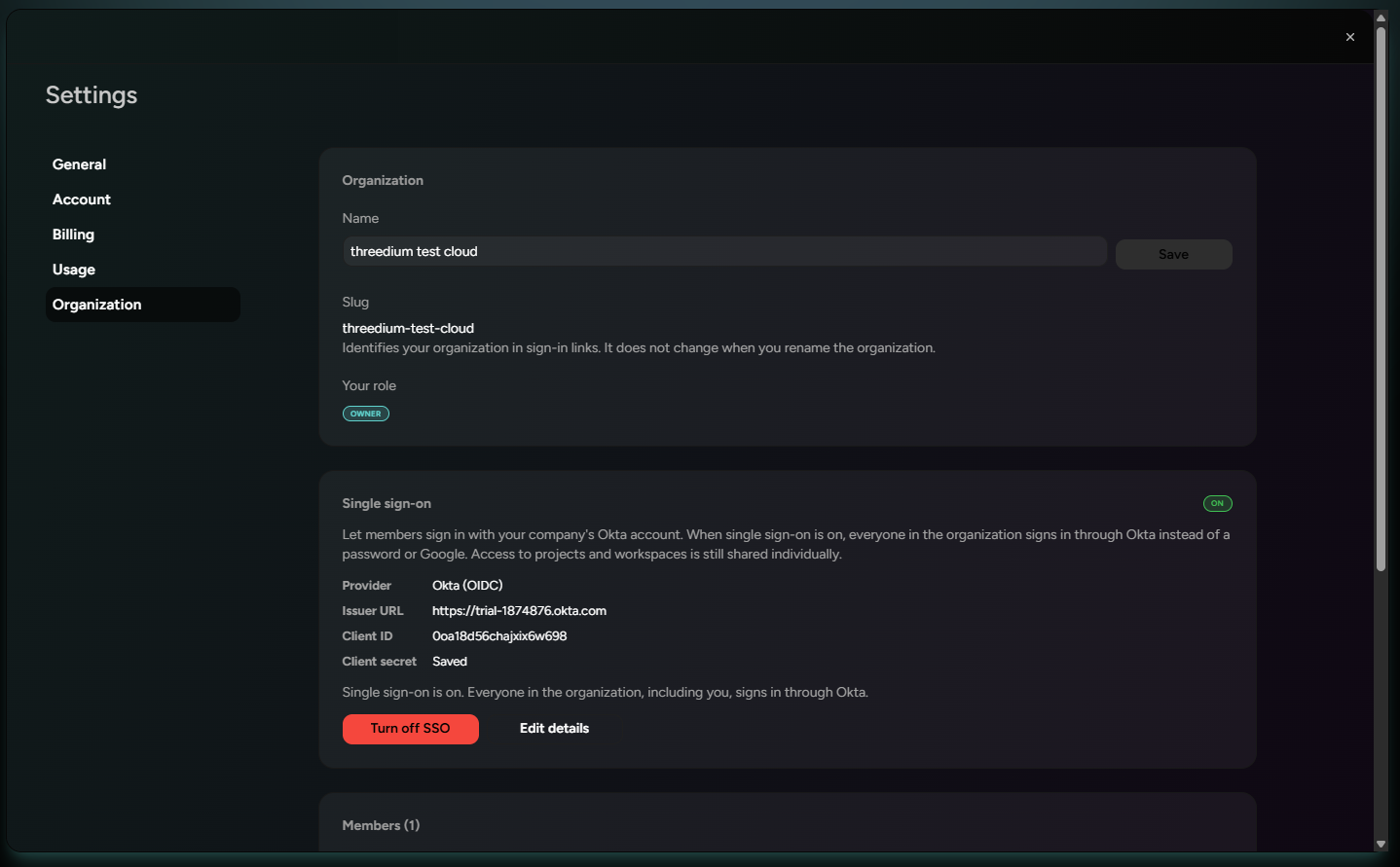
Once SSO is active, members must use Okta for their next login. They cannot sign in with a password or Google while SSO is active.
Sign in with Okta
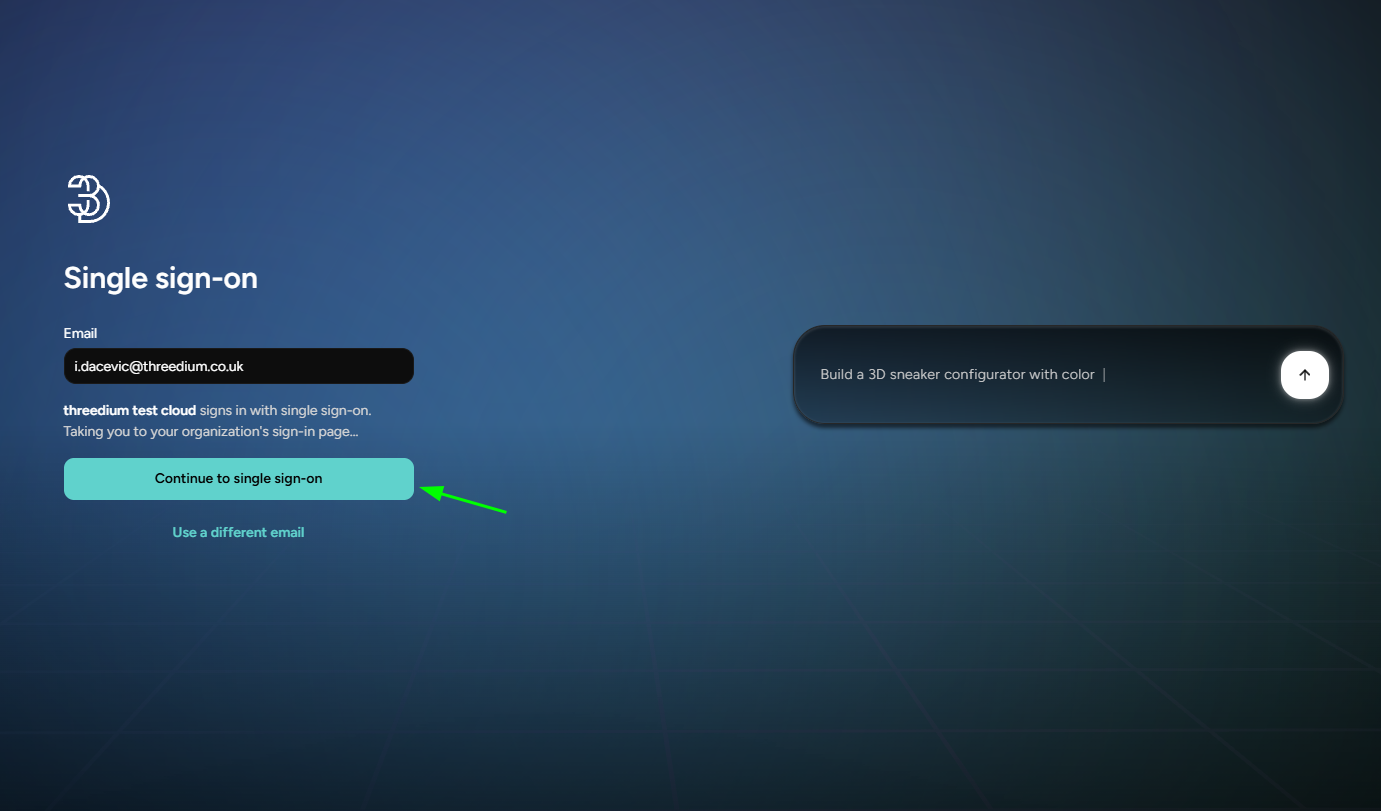
Start from the Threedium sign-in page and use your organization's SSO option. Threedium takes you to Okta, then returns you to the app after you sign in.
For an existing member's first Okta login, their verified Okta email must match their Threedium email.
Add members
- Assign the person to the Threedium application in Okta.
- Invite them to your organization in Threedium using the same email address.
- Ask them to open the invitation email and sign in with Okta.
Threedium accepts the invitation after they sign in successfully. They need the invitation link even if they already have a Threedium account. A person who belongs to another Threedium organization cannot join yours through this invitation.
Okta assignments do not add or remove Threedium members. Manage invitations and membership in Threedium. The integration does not sync users or groups through SCIM.
Change or disable SSO
The organization owner can disable SSO in the SSO settings. Members can then use password or Google sign-in if they already have those login methods. Disabling SSO does not create a password for someone who joined through Okta.
To enable SSO again, run a new connection test first.
If you change the issuer URL, Client ID, or Client secret, save all the connection details again. Saving turns off SSO until you test and enable the updated connection. Choose a time when members can pause sign-in while you make the change.
Removing someone's Okta access does not remove their Threedium membership or end an existing Threedium session.
Troubleshooting
| Problem | What to check |
|---|---|
| Okta says the redirect URL is incorrect | Copy the full Threedium sign-in redirect URL into Okta exactly as provided. |
| The connection test fails | Check the issuer URL, Client ID, and Client secret. Confirm that the owner has access to the Okta application and that their verified email matches. |
| The test expires | Start a new test and finish within 10 minutes in the same browser. |
| You cannot enable SSO | Test the connection again, then enable it within 15 minutes. |
| A member cannot sign in | Check their Okta assignment. For their first login, also check that their verified Okta email matches their Threedium email. |
| An invited member cannot join | Ask them to use their invitation link and the email address you invited. Send a new invitation if the old one has expired. |
| Password or Google sign-in no longer works | SSO is active for the organization. Use Okta to sign in. |